Explore CryptoSlate’s Institutional Playbook, a 3-part guide series on exchange due diligence, crypto-as-a-service, and token listing strategy for institutional teams.
Explore CryptoSlate’s Institutional Playbook, a 3-part guide series on exchange due diligence, crypto-as-a-service, and token listing strategy for institutional teams.
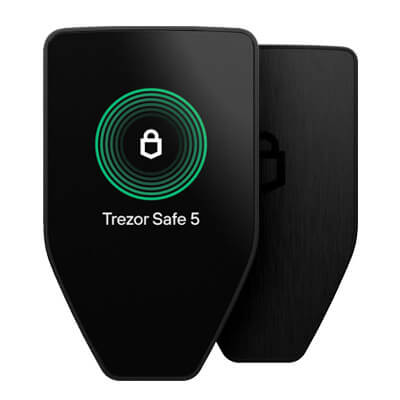
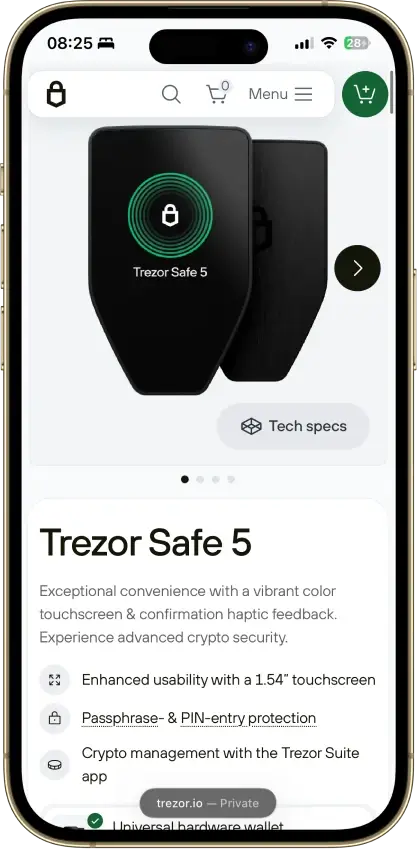
Trezor Safe 5 is a non-custodial USB-C hardware wallet that sits between Safe 3 and Safe 7 on price and features. The main reason to buy it is the screen: the touchscreen and haptic feedback make PIN entry, address checks, and approval screens easier than on the cheaper button-based model. Desktop and Android users get the full experience. iPhone and iPad use is limited to checking balances, buying, and receiving, so this is not the right Trezor for a fully iPhone-first setup.
The 1.54-inch touchscreen and haptic feedback make PIN entry, passphrase entry, and address checks easier than on button-based models.
The default 20-word backup can later be upgraded to multi-share recovery without forcing a different wallet standard.
Desktop and Android give the full Safe 5 experience, and Trezor Suite plus WalletConnect now covers many common dApp workflows.
The EAL6+ secure element adds stronger protection against physical attacks than older Trezor models without a secure element.
Cons
iPhone and iPad support is limited to checking balances, buying, and receiving. No send, swap, setup, or device management on iOS.
Safe 5 uses a wired USB-C connection and skips Bluetooth, battery power, and QR air-gap workflows.
Unsupported chains, unsupported assets, and some wallet-specific workflows still push users into third-party wallets.
If you mostly buy and hold and rarely send, the extra cost over Trezor Safe 3 may not feel worth it.
Who Trezor Safe 5 Is Best For — and Who Should Skip It
Trezor Safe 5 fits desktop-first and Android users who want a more comfortable crypto hardware-wallet workflow without moving up to Safe 7 pricing. It suits long-term self-custody users who still send often and want a better screen, easier input, and clearer on-device review.
It is a weaker fit for strict iPhone-first buyers, QR air-gap shoppers, and people whose daily routine depends on unsupported chains, unsupported assets, or wallet-specific tools. It is also not the best value crypto wallet for buyers who just want the cheapest secure Trezor and rarely sign transactions.
Best fit
Why it fits
Who should skip it
Why they should skip it
Desktop-first users
Desktop gives the fullest Safe 5 experience, and the touchscreen makes repeated confirmations easier.
Strict iPhone-first users
iOS is limited to checking balances, buying, and receiving. There is no send, swap, setup, or device management on iPhone or iPad.
Android users
Android supports the full wired Safe 5 flow over USB-C.
QR air-gap buyers
Safe 5 is a USB-C hardware wallet, not a QR signer.
Long-term holders who still send occasionally
It gives better comfort and verification than entry-level hardware wallets without pushing into Safe 7 pricing.
Buyers who want the cheapest Trezor option
The main Safe 5 upgrade is usability, so buyers who rarely sign may not get enough extra value over Safe 3.
Safe 3 cross-shoppers who sign often
The main upgrade is usability, not a different custody model.
Altcoin-heavy or wallet-specific users
Some chains, assets, dApps, and niche workflows still depend on third-party wallets.
Buyers who want a better signing screen without paying Safe 7 prices
Safe 5 improves routine review and on-device input without making the jump to Safe 7’s broader hardware package.
Monero-first users who want a native Suite workflow
Monero works, but not through Trezor Suite, so the workflow is less direct.
What Is Trezor Safe 5 and How Does It Work?
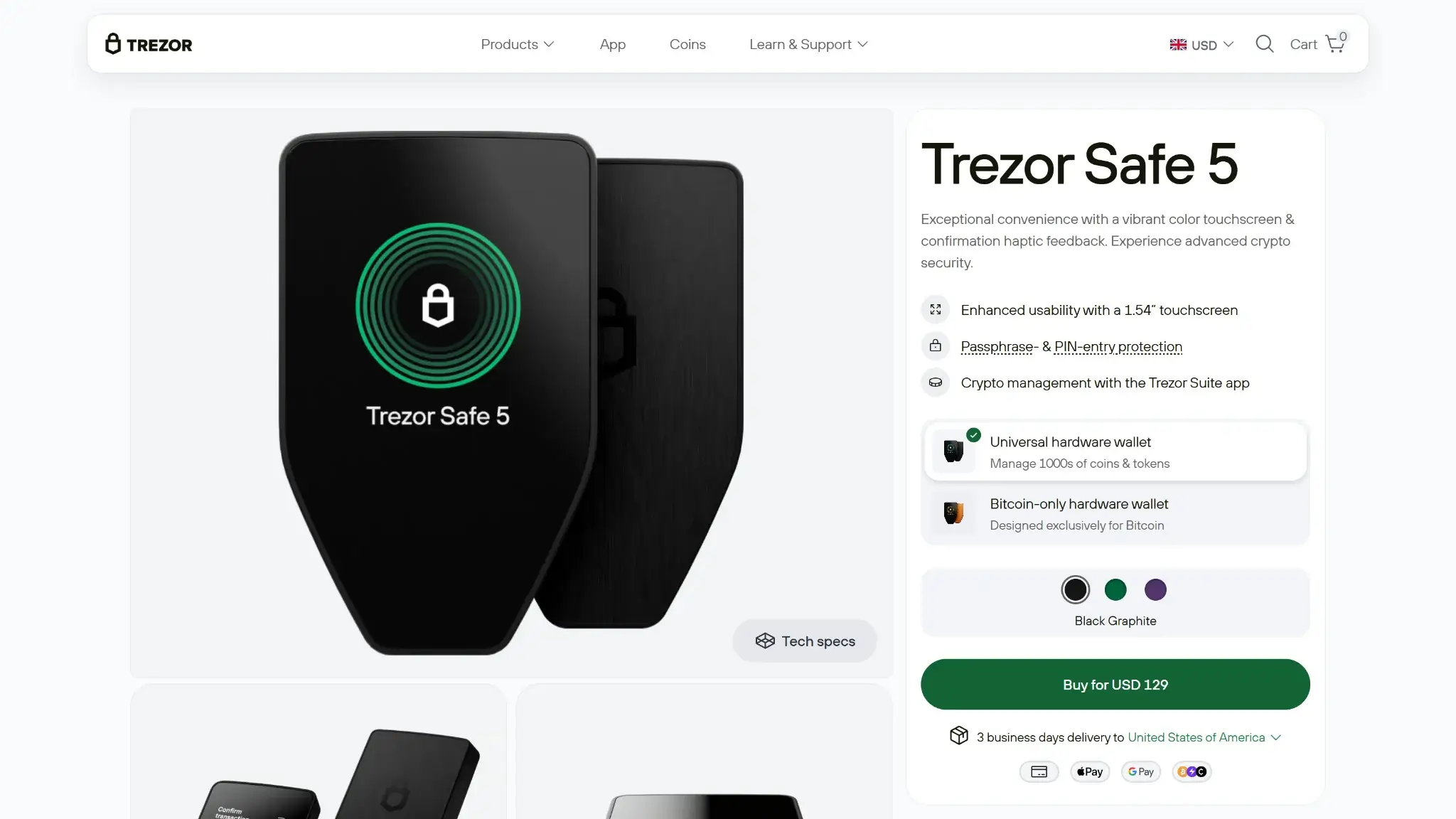
Trezor Safe 5 desktop product page showing the hardware wallet, key features, color options, and buy panel.
Trezor Safe 5 is a wired hardware wallet for self-custody. It is the signing device in the setup, not a trading account, browser extension, or standalone mobile wallet.
You use it through Trezor Suite on desktop or Android. You can also connect it to compatible third-party wallets when you need a workflow that sits outside Trezor Suite. On iPhone and iPad, use is limited to checking balances, buying, and receiving. You cannot send, swap, set up the device, or manage it fully on iOS.
The keys stay on the device. Transactions are prepared in Trezor Suite or a compatible wallet, then sent to the Safe 5 screen for review. Final approval happens on the device itself.
What users can do with it depends on the asset and wallet path:
Core use: hold assets, receive, send, manage accounts, and use supported buy or swap flows through Trezor Suite on desktop and Android.
dApp use: Trezor Suite plus WalletConnect covers many common Ethereum and Solana flows.
Outside-wallet use: some chains, assets, and wallet-specific workflows still need MetaMask, Rabby, Backpack, NuFi, Exodus, or Monero GUI or CLI.
A few basics shape daily use:
It is a USB-C hardware wallet with on-device confirmation.
It works best on desktop and Android.
It has no air-gap or Bluetooth.
It has no battery, so it only turns on when connected.
It makes routine signing more comfortable than button-based models.
It works well inside the Trezor ecosystem for core use, but some workflows still need outside wallets.
Safe 5 also sits in a clear spot in the lineup. Safe 3 is the cheaper button-based option. Safe 7 is the more advanced model with a larger screen, wireless features, battery power, broader iOS fit, and a bigger hardware jump overall. Safe 5 is the middle option for buyers who want a better interface without paying for the full Safe 7 package.
Wallet Type, Custody, and Recovery Model
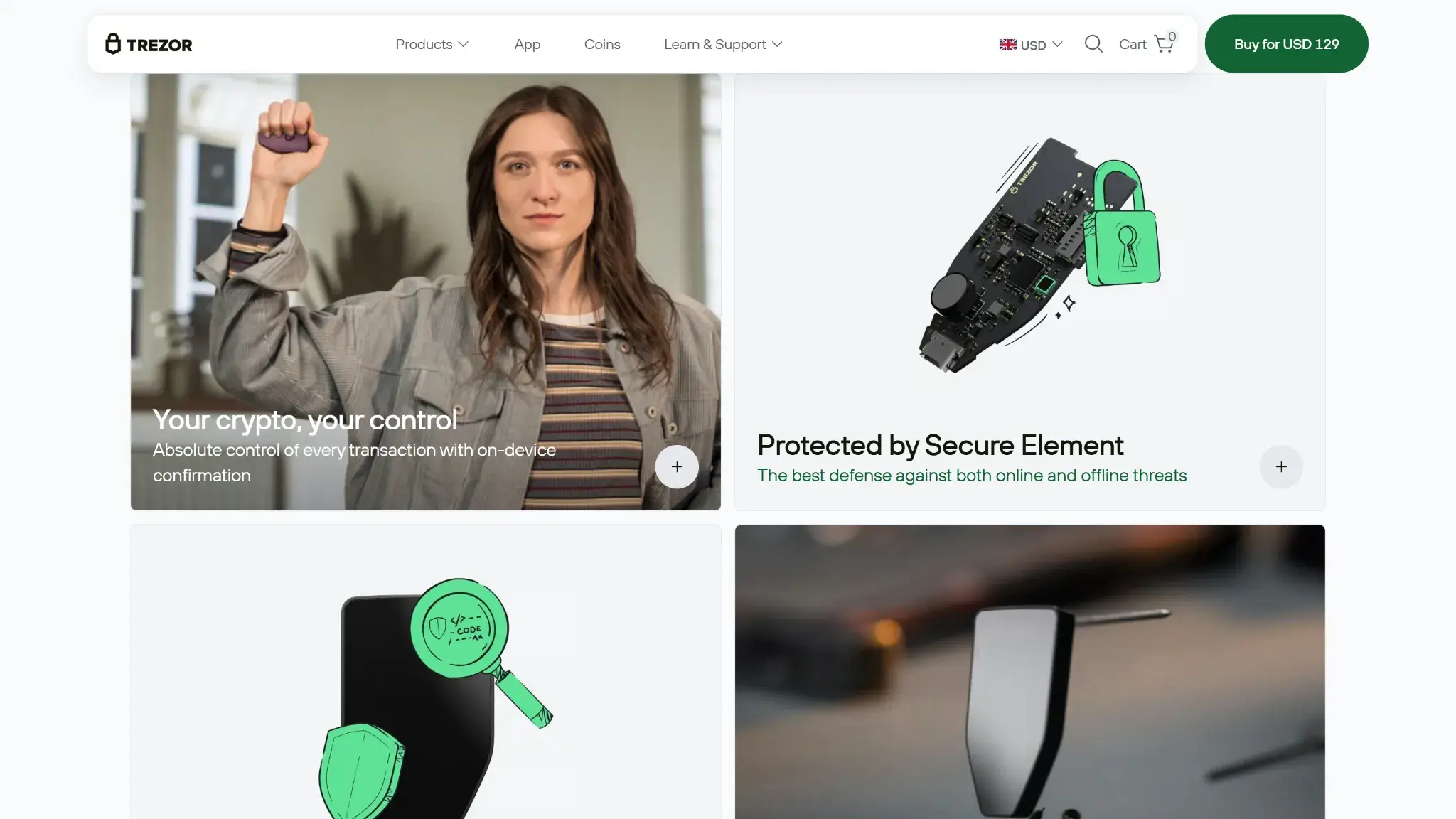
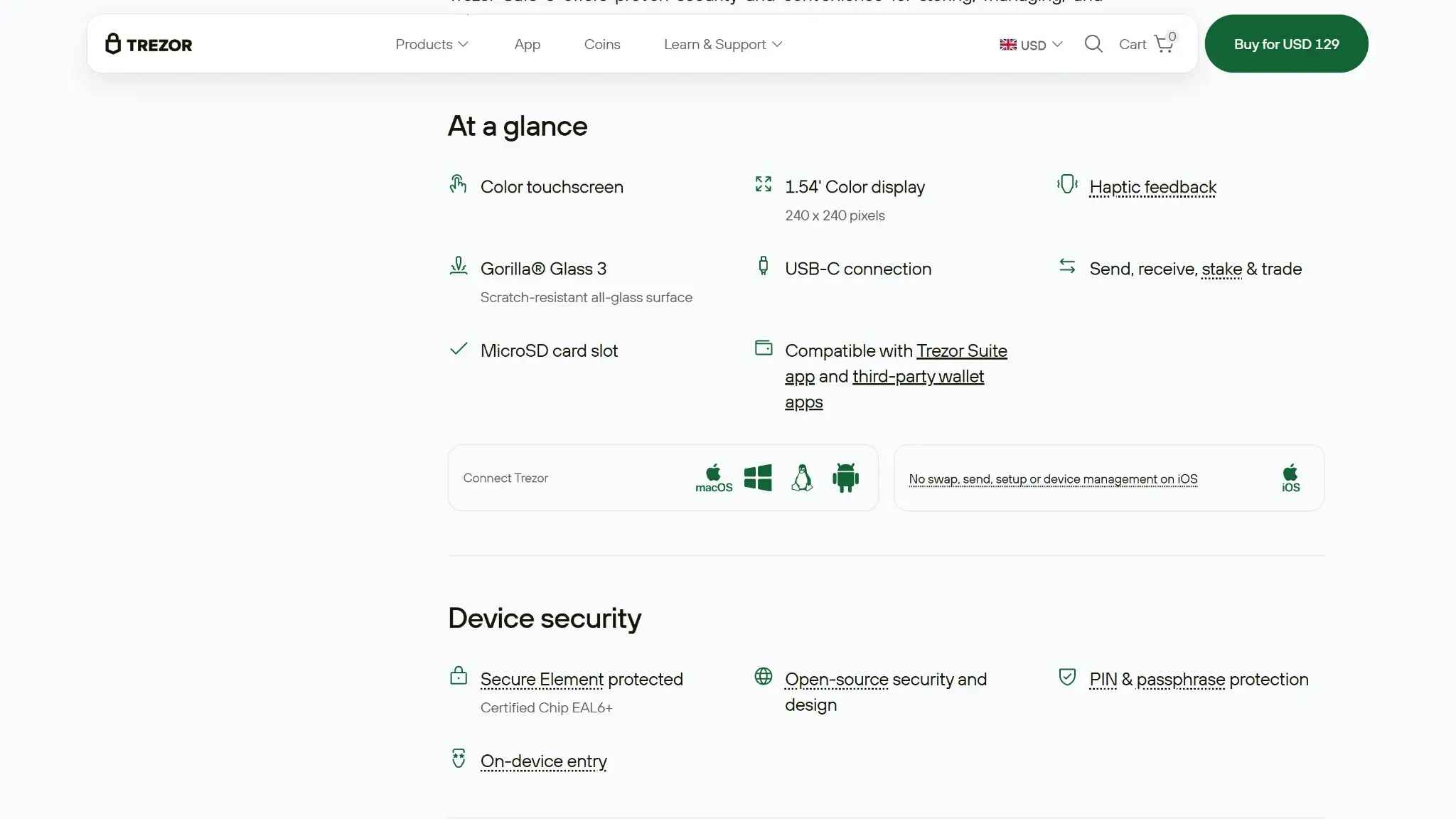
Trezor Safe 5 desktop page highlighting secure element protection, open-source design, Gorilla Glass, and on-device confirmation features.
This is a non-custodial hardware wallet. The user controls the keys. Trezor does not, and neither does a third-party provider.
Recovery is backup-based. Safe 5 uses a 20-word single-share backup by default, with the option to move to multi-share later. It also supports 12-word and 24-word formats. That makes it more portable than many buyers expect, but portability is not identical across every asset and workflow. Monero is the main caveat here because its recovery path is more complex than normal Suite-based assets.
If the device is lost but the backup still exists, the wallet can be restored. If the backup is lost and the device later fails or resets, recovery becomes the real problem. Support cannot recreate a lost backup or recover the wallet for the user.
Wallet classCold hardware wallet
Who controls the keysUser
Recovery method20-word single-share backup by default; optional multi-share; also supports 12-word and 24-word formats
Can you export keys or seed?Limited
Portability to another walletPartial
What happens if you lose the deviceFunds remain recoverable if the correct backup still exists. The wallet can be restored on a new device or through compatible recovery paths, depending on the asset and setup.
What happens if you lose the recovery methodAccess risk becomes serious. If the device later fails, resets, or is lost, the wallet may become unrecoverable.
Who can help recover accessNobody can recreate the backup. Recovery depends on the user having the correct backup and passphrase, if one was used.
Best use caseLong-term self-custody with regular sending and on-device verification
Safe 5 is portable in a practical sense, but not every recovery path is equally smooth. Standard recovery paths exist outside Trezor for 20-word single-share, multi-share, 12-word, and 24-word setups, but exact compatibility still depends on the asset and the recovery tool. For Monero, the path is less direct.
Passphrase users need to be careful. A different passphrase opens a different wallet. If the original passphrase is lost or entered incorrectly, the wallet can look empty even when the funds are still tied to the correct hidden wallet.
Supported Assets, Networks and Compatibility
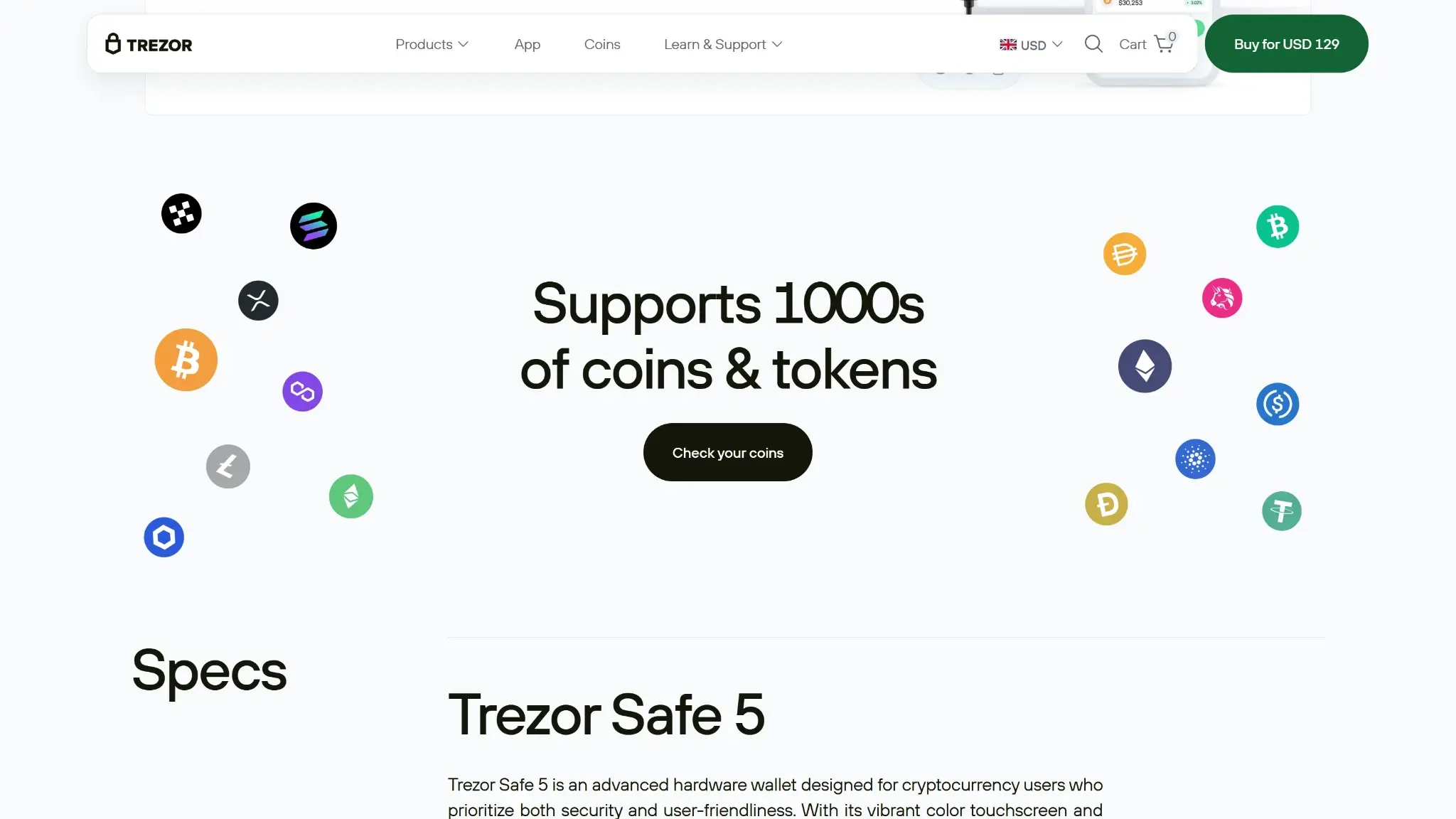
Trezor Safe 5 desktop page showing support for thousands of coins and tokens alongside the specs section.
Safe 5 supports a broad multi-chain mix, but support is not the same across every chain, token, and app. The smoothest experience is still with major assets inside Trezor Suite.
Major chains supportedBitcoin, Ethereum, Solana, Cardano, XRP, XLM, and other supported multi-chain paths
Token standardsNative coins and supported ERC-20 tokens; broader token support depends on the network and wallet path
PlatformsmacOS, Windows, Linux, Android, iPhone, and iPad; full workflow on desktop and Android, limited use on iPhone and iPad
Hardware supportN/A
Connection methodsUSB-C; WalletConnect for supported dApp flows inside Trezor Suite; third-party wallet connections for selected outside workflows
Notable gapsNo HBAR support, no SUI support, no native Monero workflow in Trezor Suite, limited iOS functionality, and some assets or dApps still require third-party wallets
A common mistake is assuming that “supported” always means “fully native in Trezor Suite.” That is not how Safe 5 works. Some assets follow the standard path, some depend on WalletConnect, and some need a separate wallet app.
Monero, NFTs, and broader dApp use are where this shows up most. Safe 5 can handle more than older Trezor workflows did, but it still does not turn every ecosystem into one clean interface.
Core Features and Real-World Use Cases
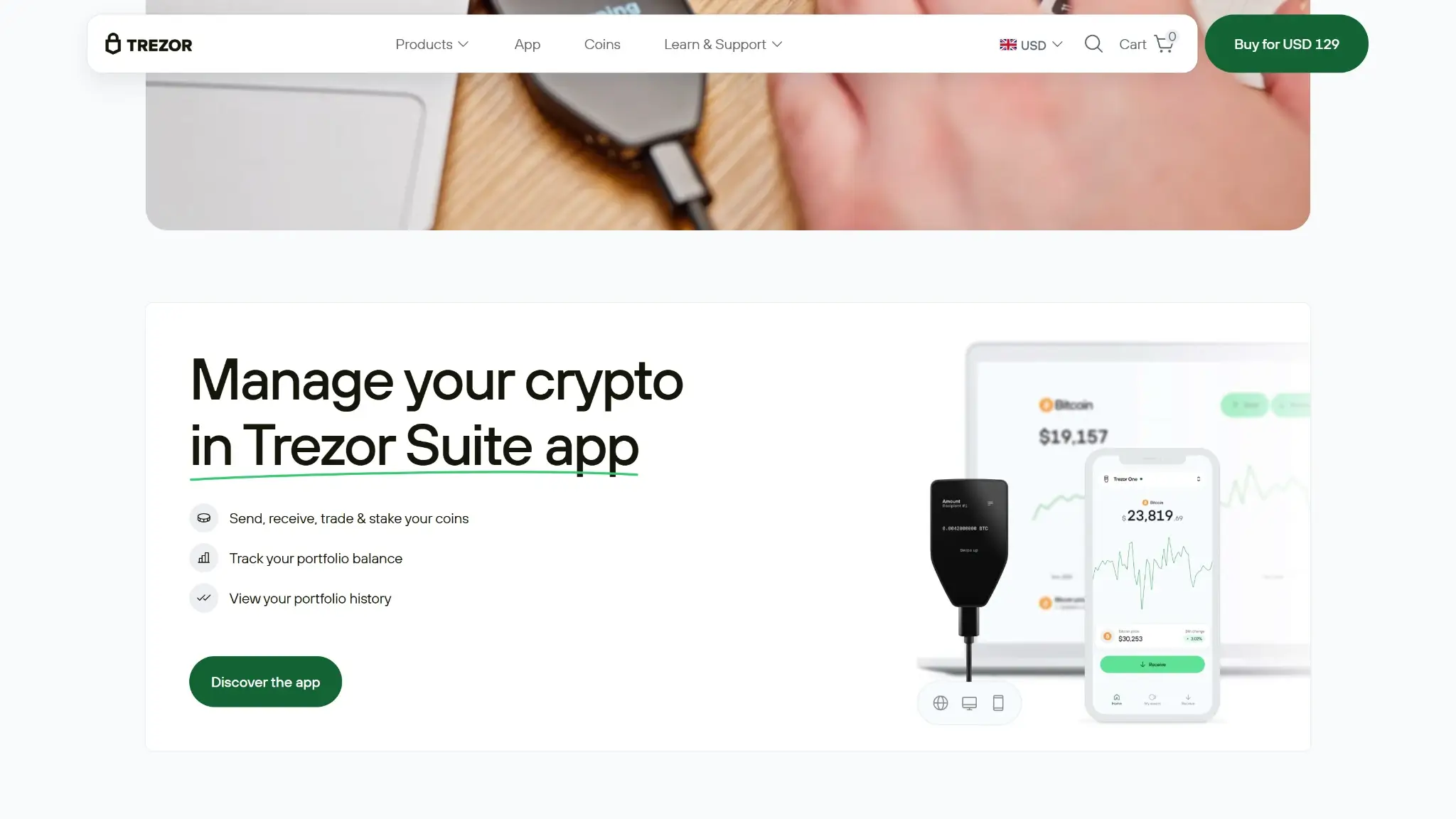
Trezor Suite desktop section showing send, receive, trade, stake, and portfolio tracking for Trezor Safe 5.
Safe 5 covers the features most mainstream hardware-wallet buyers will care about, but it is not the most feature-heavy option in the category. It works best for long-term storage, regular sending, and some dApp use rather than constant multi-chain activity. The main gain over Safe 3 is a better screen and smoother signing flow. The main compromise versus Safe 7 is weaker iOS support and no wireless convenience.
Feature area
What users can do
How it works in practice
Key limitations, costs, or risks
Swaps and trading
Swap supported assets and use supported buy or sell flows
These flows run through Trezor Suite on supported desktop and Android paths
Availability depends on the provider path and asset. Provider fees, spreads, and network costs can apply. No swap flow on iOS.
Staking and earn
Stake supported assets
Staking support exists for some assets in Trezor Suite, including Cardano
Staking is not universal across the wallet. Support depends on the asset and workflow.
dApp access and connectivity
Connect to many dApps across supported chains
Trezor Suite plus WalletConnect covers many Ethereum and Solana dApp flows. Outside that, users may rely on MetaMask, Rabby, Backpack, or NuFi
Coverage is broader than older Trezor flows, but not universal. Unsupported chains, unsupported assets, and wallet-specific flows still create friction.
NFTs
Use supported NFT paths
NFT activity can run through supported accounts and supported dApp flows
NFT handling is not a fully native all-in-one experience. Some workflows still depend on third-party interfaces.
Exchange and account features
Buy and sell with fiat-linked providers and manage assets inside Trezor Suite
Users can access supported buy and sell flows from the Suite environment
Identity verification is usually required for provider-powered off-ramp and buy flows. Availability can vary by provider path.
The feature set is useful, but it is not fully self-contained. Safe 5 handles the core hardware-wallet job well and now reaches further into dApp activity than older Trezor setups did, which makes it more practical for real portfolios that include more than simple BTC storage.
The weak point is consistency. Buying, selling, staking, and some dApp use can stay inside Trezor Suite, while other dApp flows, NFT activity, and some chain-specific paths still depend on WalletConnect, external wallet apps, or third-party providers. That is the main gap for users who want to handle most activity without switching tools.
Fees and Total Cost of Ownership
The base Safe 5 price is only part of the real cost. Buyers also need to think about shipping, import charges, backup accessories, optional onboarding help, provider fees for buy or sell flows, and normal on-chain network fees. That puts Safe 5 in the mid-tier on base price, but the real cost can climb if the buyer adds backup accessories or uses provider-based transactions often.
Cost component
What users pay
When it applies
Notes
Device or wallet price
USD 129
One-time
Base Safe 5 hardware price
Shipping and import costs
Varies
Hardware orders
Taxes, customs, shipping, and carrier-collected import costs can raise the real purchase price
Network fees
Variable
Sends and other on-chain actions
Chain dependent
Swap spread or routing fee
Variable
Swaps
Depends on the provider path, market conditions, and network costs
On-ramp fee
Variable
Buying crypto
Provider dependent
Withdrawal fee
Variable
Selling or off-ramp flows
Provider fees can apply, and network costs may still matter depending on the path
Subscription or premium fee
Not applicable
Not applicable
No recurring wallet subscription
The wallet itself does not introduce a recurring fee model, but real usage costs can still build up through provider-powered buy, sell, and swap flows. Buyers who plan to add a metal backup, pay for onboarding help, or import the device into a region with extra charges should treat the full ownership cost as higher than the headline USD 129.
Security Architecture and Trust
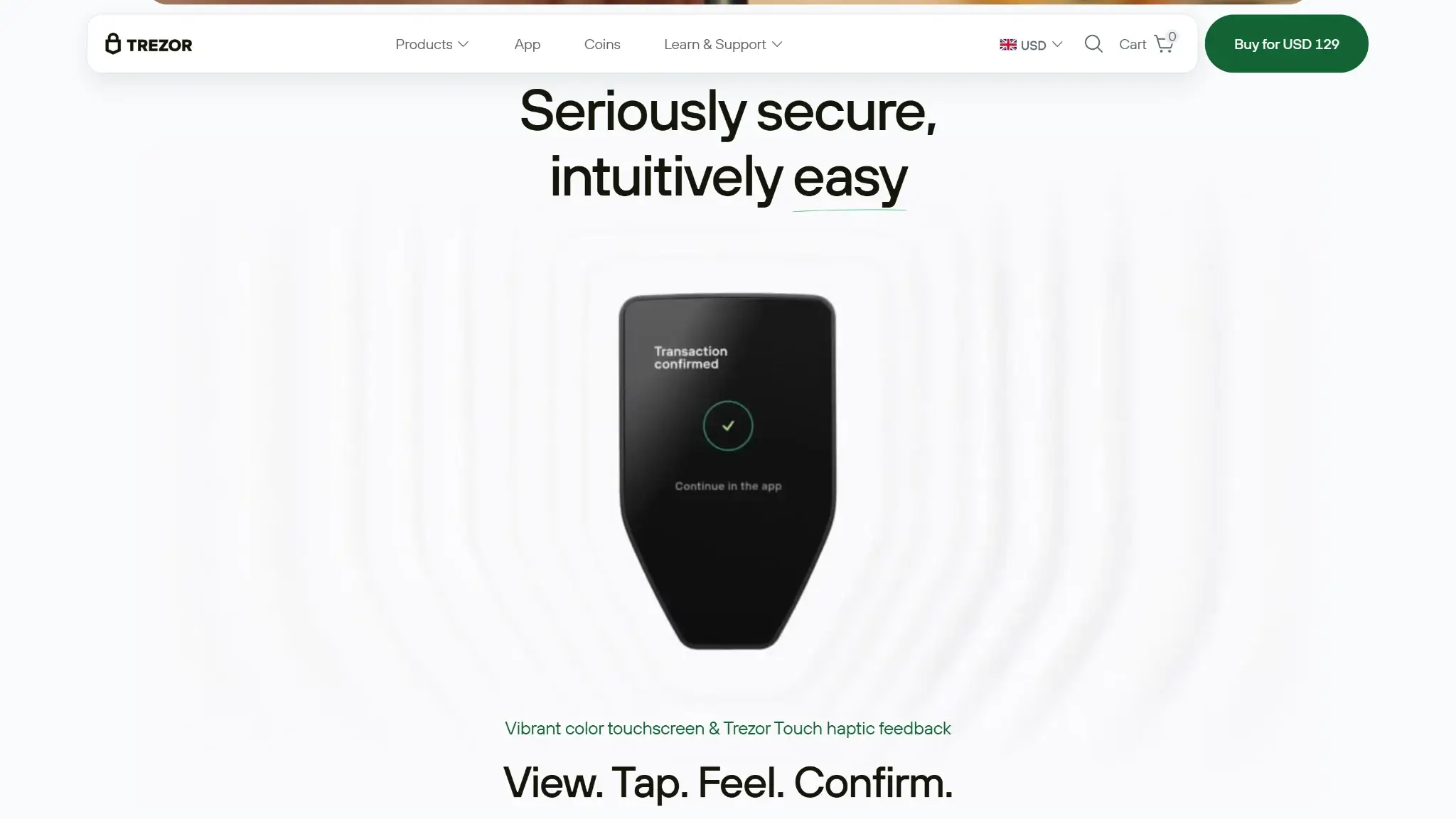
Trezor Safe 5 desktop hero section highlighting the color touchscreen, haptic feedback, and “Seriously secure, intuitively easy” messaging.
Safe 5 has a strong mainstream hardware-wallet security model. The core strengths are local key storage, on-device approval, a secure element, and setup checks that reduce supply-chain risk. The weak points are the usual ones for a hardware wallet: fake software, careless approvals, wrong-address sends, and risky third-party wallet flows.
Key control modelNon-custodial. Keys are generated and kept on the device.
Recovery model20-word single-share backup by default, optional multi-share, plus 12-word and 24-word support. Passphrase can add separate hidden wallets.
External validationEAL6+ secure element, Secure Element authenticity check during setup, and a public bug bounty program. Trezor has not published a Safe 5-specific audit report.
Open-source statusPartial. The device software is open and auditable, but Safe 5 does not use the TROPIC01 hardware approach highlighted in Safe 7.
Anti-scam protectionsOn-device address review, on-device approval or rejection, official software path, packaging checks, authenticity checks, and a strict rule never to share the wallet backup, PIN, password, or codes.
Incident posturePublic 2024 disclosures covered a third-party support-portal breach, an unauthorized newsletter email, and an X account breach. New units ship without firmware and must be initialized through Trezor Suite.
Keys stay on the device, not on the computer or phone. Transactions are prepared in Trezor Suite or a compatible wallet, then shown on the Safe 5 screen for approval or rejection. The device uses an EAL6+ secure element, on-device PIN entry, and on-device passphrase entry. Passphrases are never stored on the device. After 16 incorrect PIN entries, the device wipes itself. Trezor Suite mobile can also add an app-level biometric lock. New devices ship without firmware, Trezor Suite installs it, the bootloader verifies firmware signatures, and unofficial firmware triggers a warning.
Buyers need to use trusted sellers, check the packaging and holographic seal, install firmware through Trezor Suite, and run the Secure Element authenticity check. Trezor also runs a public bug bounty across hardware, software, and infrastructure. Public 2024 incident disclosures covered a third-party support-portal breach, an unauthorized newsletter email, and an X account breach. Those incidents were tied to communication and support surfaces, not device key storage. Most of the trust here comes from the device design and setup flow, not from a long public audit trail.
Backup, Recovery and Loss Scenarios
Safe 5 can be recovered outside Trezor with the right 20-word, multi-share, 12-word, or 24-word backup. Even so, it becomes unforgiving if the user loses both the device and the recovery data, or loses the exact passphrase tied to a hidden wallet.
Scenario
What usually happens
What can fix it
When loss becomes permanent
Lost Safe 5, backup still available
Funds remain recoverable
Restore the wallet with the correct backup format and the exact passphrase, if one was used
Loss becomes permanent if the backup or exact passphrase is unavailable
Broken or dead device, backup still available
Same outcome as a lost device
Recover on a new device or through a compatible recovery path, depending on the asset
Loss becomes permanent if there is no usable recovery data
Forgotten PIN
Repeated bad attempts can lead to a device wipe after 16 wrong tries
Recover the wallet from the backup and use the exact passphrase, if one was used
Loss becomes permanent if the backup or passphrase is missing after the wipe
Wrong or forgotten passphrase
The wallet can look empty because a different passphrase opens a different wallet
Re-enter the exact original passphrase
Loss becomes permanent if the original passphrase is permanently lost
Lost backup, device still works
Funds may still be accessible for now, but recovery safety drops sharply
Fix the backup gap while the device still works
Loss becomes permanent if the device later fails, resets, or is lost before backup is fixed
Wrong backup restored
Addresses do not match the expected wallet
Wipe and restore again with the correct backup and correct backup standard
Loss becomes permanent if the correct backup cannot be found
The restore flow on a fresh device is simple: connect the new device, choose recovery instead of creating a new wallet, enter the correct backup standard, and use the exact same passphrase if the old wallet used one. There is no cloud restore or synced backup layer here.
Support can help with setup logic and troubleshooting, but it cannot recreate a lost backup, recover a forgotten passphrase, reverse an on-chain transfer, or restore funds for the user. Loss becomes permanent when the device is gone or wiped and the correct recovery data is no longer available.
Build QuUX, Performance and Platform Supportality, Screen, and Everyday Handling
Safe 5 is easier to use correctly than a button-based hardware wallet, especially for people who sign often. The touchscreen improves review and input, and the best overall experience still belongs to desktop and Android.
Platform
Availability
Notes
iOS
Yes
Limited to checking balances, buying, and receiving. No send, swap, setup, or device management.
Android
Yes
Full Safe 5 workflow over USB-C.
Browser extension
No dedicated extension
Some outside workflows can run through compatible third-party browser wallets such as MetaMask, Rabby, Backpack, or NuFi.
Desktop
Yes
Best overall Safe 5 experience through Trezor Suite on macOS, Windows, and Linux.
Web app
Yes
Trezor Suite web works in Chromium-based browsers. Safari and Firefox are not part of this path.
The 1.54-inch 240 x 240 touchscreen, Gorilla Glass 3, and haptic feedback are the main usability upgrade over Safe 3. Signing is clearer because the important details move onto a dedicated screen instead of staying on the host device. The wallet is compact at 65.9 x 40 x 8 mm and 23 g, but every active session is wired because there is no battery and no Bluetooth.
The setup flow is good for beginners because it walks through authenticity checks, firmware installation, wallet creation or recovery, and PIN setup in a clear order. It also supports more advanced use, including Bitcoin-only firmware, passphrase use, third-party wallet connections, and microSD-based encryption. Most friction comes from platform asymmetry, wired-only use, and the need to rely on outside wallets for some advanced flows.
Customer Support, Documentation and Incident Handling
Support is useful for setup, troubleshooting, and compatibility questions, but it does not change the basic rule of a non-custodial wallet: nobody can restore a lost backup or undo an on-chain mistake. Most questions here are really setup or compatibility issues, so the help center matters more than live support.
Official support materials cover setup, authenticity checks, recovery, integrations, payment questions, and logistics issues.
Live chat
Chatbot-first
Urgent support and guided triage
Trezor's support chatbot, Hal, handles first contact and can route users into the support flow.
Email or tickets
Yes
Technical, payment, or logistics issues
Ticket submission is available through the official support flow.
Status page
Yes
Outages and incidents
Public Trezor Status page.
Community channels
Trezor Forum, GitHub
Announcements, peer help, and technical issue reporting
Official forum and public technical reporting path.
Documentation is stronger and easier to verify than human support channels, which is normal for a non-custodial hardware wallet. The help center, ticket flow, status page, forum, and GitHub path cover most real needs around setup, compatibility, troubleshooting, and incident awareness. Support can explain device checks, wallet paths, payment or shipping issues, and common mistakes. It still cannot recover a lost seed, retrieve a passphrase, reverse a sent transaction, or take custody of the wallet on the user’s behalf.
Final Verdict
Trezor Safe 5 is a wired touchscreen Trezor for buyers who want a smoother signing workflow than Safe 3 without paying for Safe 7’s larger screen, broader iPhone fit, battery, Bluetooth, and bigger hardware jump. It is strongest on desktop and Android, strong on backup flexibility, and more capable inside Trezor Suite than older Trezor workflows because WalletConnect now covers many dApps.
The 1.54-inch touchscreen and haptic feedback make PIN entry, passphrase entry, and address checks easier than on button-based models.
The default 20-word backup can later be upgraded to multi-share recovery without forcing a different wallet standard.
Desktop and Android give the full Safe 5 experience, and Trezor Suite plus WalletConnect now covers many common dApp workflows.
The EAL6+ secure element adds stronger protection against physical attacks than older Trezor models without a secure element.
CONS
iPhone and iPad support is limited to checking balances, buying, and receiving. No send, swap, setup, or device management on iOS.
Safe 5 uses a wired USB-C connection and skips Bluetooth, battery power, and QR air-gap workflows.
Unsupported chains, unsupported assets, and some wallet-specific workflows still push users into third-party wallets.
If you mostly buy and hold and rarely send, the extra cost over Trezor Safe 3 may not feel worth it.
Affiliate Disclosure
Disclaimer: CryptoSlate may receive a commission when you click links on our site and make a purchase or complete an action with a third party. This does not influence our editorial independence, reviews, or ratings, and we always aim to provide accurate, transparent information to our readers.
FAQ
Is Trezor Safe 5 custodial or non-custodial?
Trezor Safe 5 is non-custodial. That means you control the keys and the wallet backup yourself, not a company or exchange, so no provider can reset the wallet or recover funds for you.
Is Trezor Safe 5 a hot wallet or a cold wallet?
Trezor Safe 5 is a cold hardware wallet. A hot wallet keeps keys on an internet-connected phone, browser, or computer, while a cold wallet keeps keys on a separate device and requires approval on that device before funds move.
Does Trezor Safe 5 give you a seed phrase?
During setup, Trezor Safe 5 gives you a wallet backup that you use to recover access if the device is lost, broken, or wiped. The default is a 20-word single-share backup, and it also supports multi-share backup plus 12-word and 24-word formats.
Is Trezor Safe 5 safe?
Trezor Safe 5 has a strong hardware-wallet security model. It stores keys on the device, requires on-device approval, includes a secure element, and checks device authenticity, but it still depends on careful setup, safe backup storage, and careful transaction review.
Which chains does Trezor Safe 5 support?
Trezor Safe 5 supports major assets such as Bitcoin, Ethereum, Solana, Cardano, XRP, and XLM, plus supported ERC-20 flows in Trezor Suite. It also works with Monero through Monero GUI or CLI and with XDC through third-party wallets, while HBAR and SUI are not supported.
What fees does Trezor Safe 5 charge?
Trezor Safe 5 does not charge a recurring account fee, but there is a device cost. Users may also pay shipping, import charges, network fees, swap spreads, and provider fees for buy, sell, or off-ramp flows.
Does Trezor Safe 5 require KYC?
Trezor Safe 5 doesn’t require KYC at the wallet level. the requirement usually appears only when you use buy, sell, or off-ramp providers, because the wallet itself is non-custodial (does not require identity verification for basic storage or transfers).
What happens if you lose your Trezor Safe 5 device or recovery method?
If your Trezor Safe 5 device is lost but the correct wallet backup still exists, the funds are still recoverable on another compatible device. If both the device and the correct recovery data are gone, the loss can become permanent because support cannot recreate the backup for you.