Best Monero Wallets — Top XMR Wallets for Desktop, Mobile, and Cold Storage (March 2026)

Compare the best Monero wallets for desktop, mobile, and cold storage in 2026. This guide covers top XMR wallet picks, key trade-offs, hardware compatibility, and practical setup, privacy, and recovery tips.

Updated Mar. 20, 2026
Reviews in this list 7
Trusted Reviews Editorially curated & independently checked
Curated by Yousra Anwar Ahmed
Since Feb 2026 35 reviews
Checked by George Ong
Since Mar 2018 86 fact-checks
Affiliate Disclosure

Disclaimer: CryptoSlate may receive a commission when you click links on our site and make a purchase or complete an action with a third party. This does not influence our editorial independence, reviews, or ratings, and we always aim to provide accurate, transparent information to our readers.

Monero users do not all need the same type of wallet. This guide compares the best Monero (XMR) wallets for desktop, mobile, and cold storage, including official software, privacy-focused apps, and hardware wallet setups for long-term storage.

The best wallet for Monero depends on how you plan to use XMR. Some users want the easiest Monero wallet app for quick access, while others care more about self-custody, local syncing, and privacy, which can make a desktop or hardware-based setup the better fit.

Whether you want a simple Monero (XMR) wallet for everyday use, a Monero GUI wallet for desktop control, or a hardware wallet setup for colder storage, this guide breaks down which options are worth considering and what you gain (and give up) with each one.

Rank
Name
Rating
Type
Best For
Platforms
Key Advantages
Secure link
Rank 1
8.0
Hardware wallet
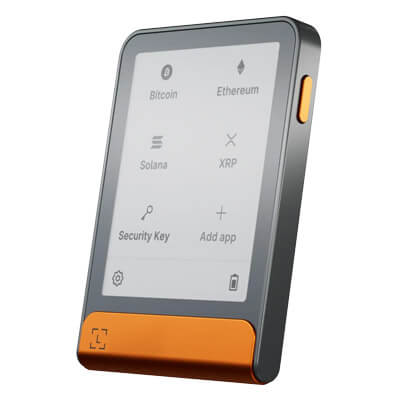
Phone-and-desktop users who sign often enough to care about screen comfort.
iOSAndroidDesktop (Windows)Desktop (macOS)Desktop (Linux)
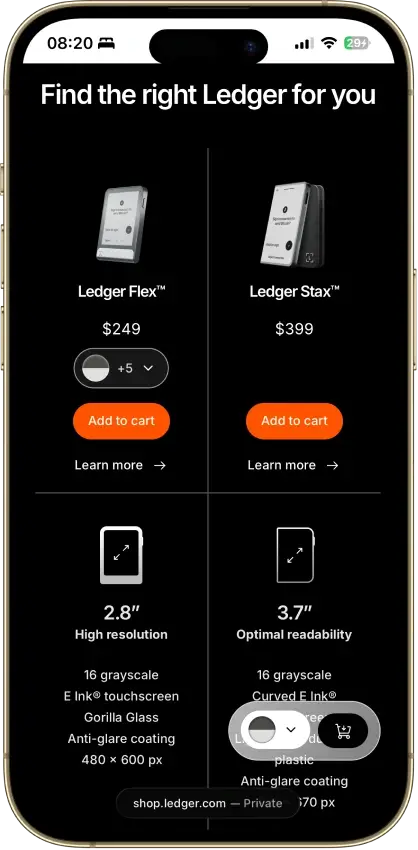
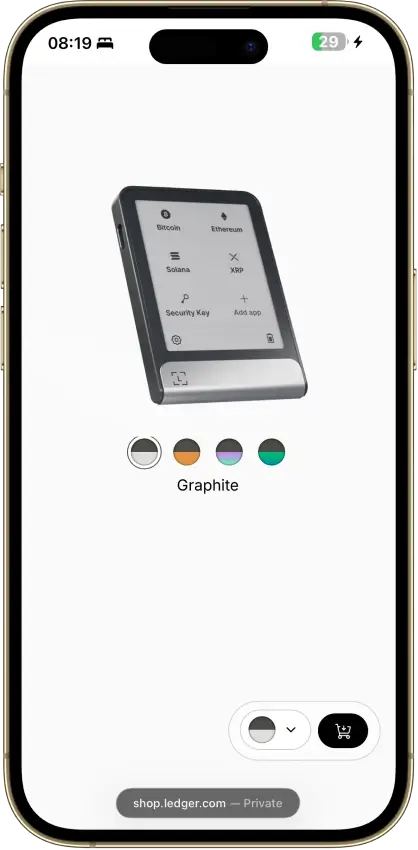
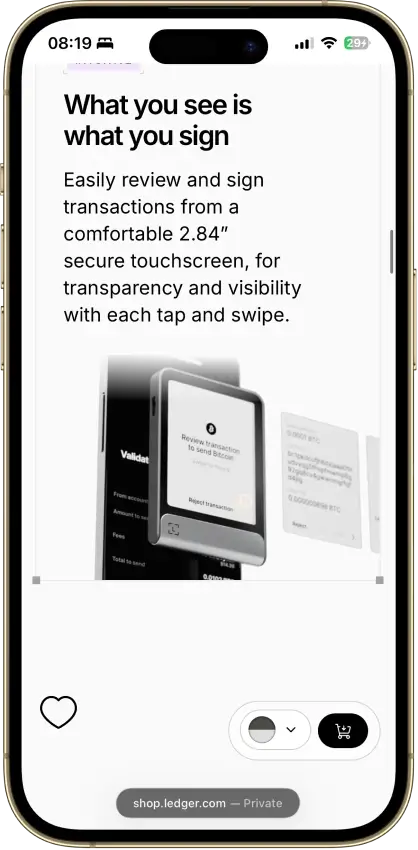
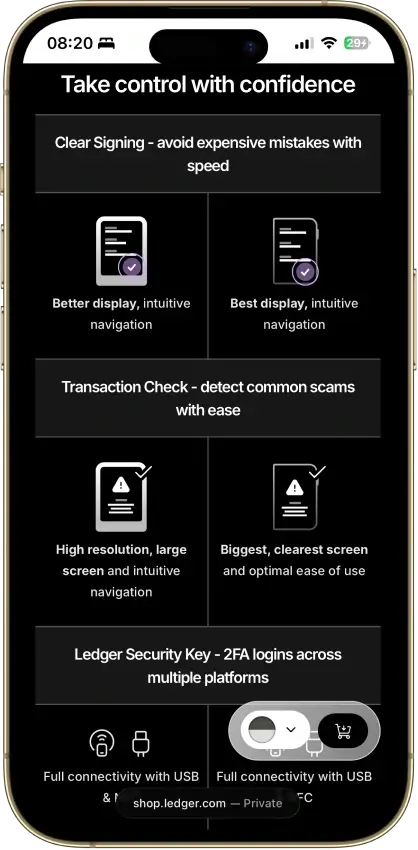
  • Large touchscreen hardware wallet for easier transaction review
  • Bluetooth crypto wallet with strong mobile support
  • Ledger Flex offers premium usability below Stax pricing
Rank 2
7.5
Hardware wallet
Desktop or Android users who want a better signing screen without paying Safe 7 money.
iOSAndroidDesktop (Windows)Desktop (macOS)Desktop (Linux)
  • Touchscreen crypto wallet with clearer on-device signing than button-only models
  • Flexible 20-word backup with upgrade path to multi-share recovery
  • Strong desktop and Android hardware wallet experience at a mid-tier price point
Rank 3
7.0
Hardware wallet
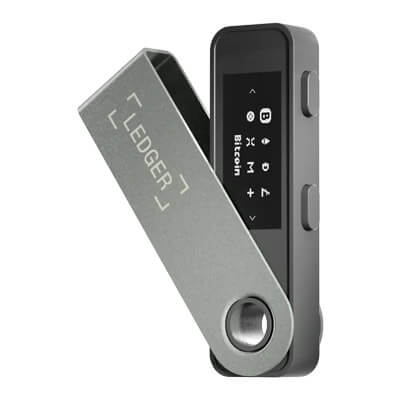
Desktop-first holders who want broad Ledger asset support without paying for Bluetooth.
AndroidDesktop (Windows)Desktop (macOS)Desktop (Linux)iOSBrowser extension
  • Low-cost Ledger hardware wallet for secure self-custody
  • Simple USB-only design with no battery or Bluetooth
  • Broad crypto support with standard 24-word recovery
Rank 4
7.0
Hardware wallet
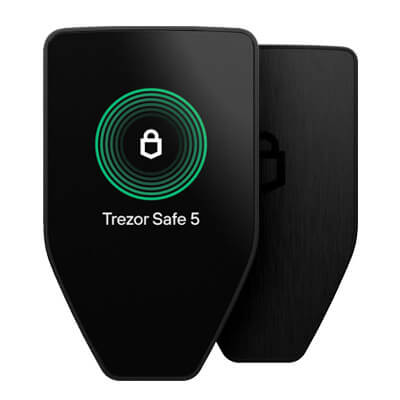
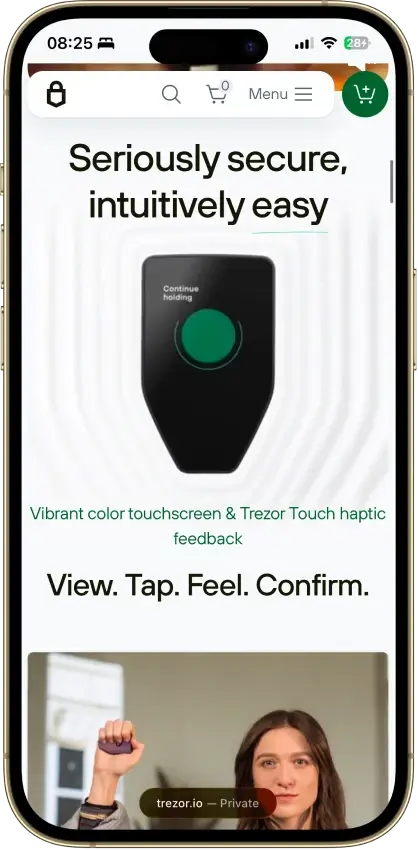
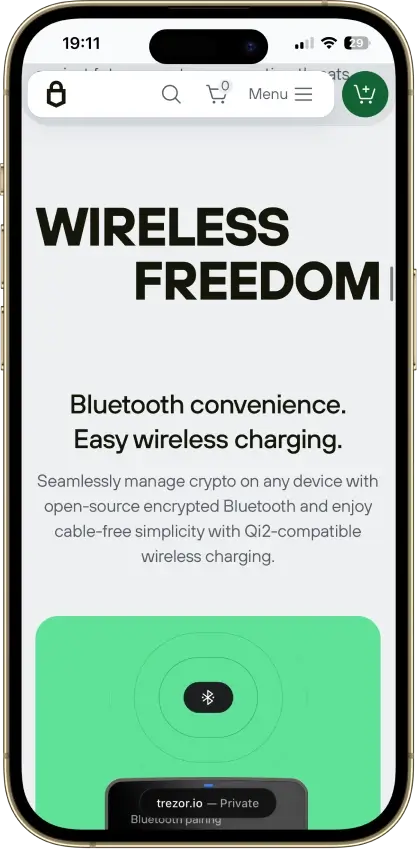
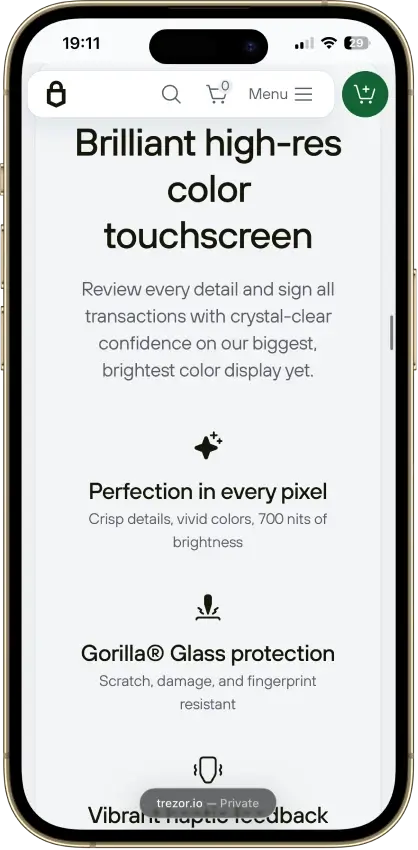
Mobile-first self-custody users who want a premium Trezor with Bluetooth and a large touchscreen.
iOSAndroidDesktop (macOS)Desktop (Windows)Desktop (Linux)
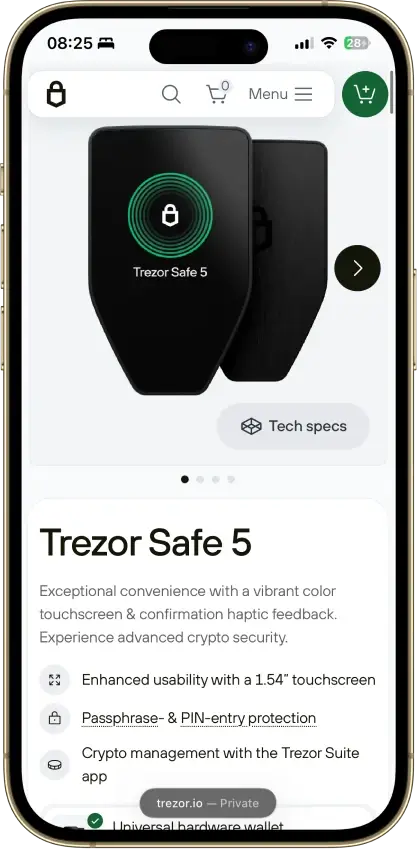
  • Built for mobile-first self-custody
  • Larger screen, clearer transaction checks
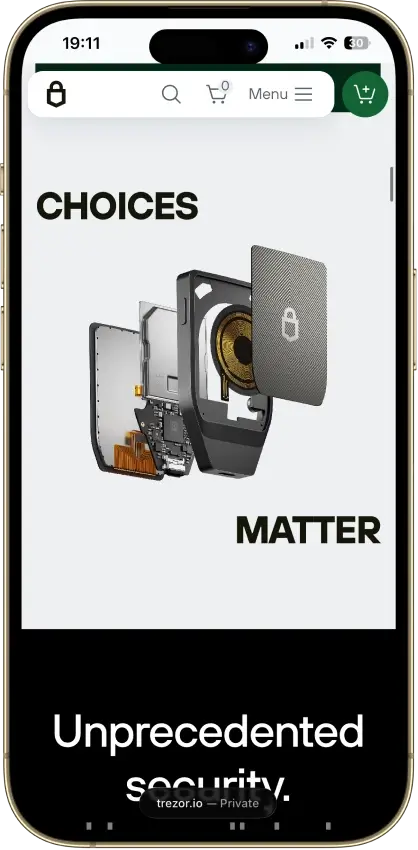
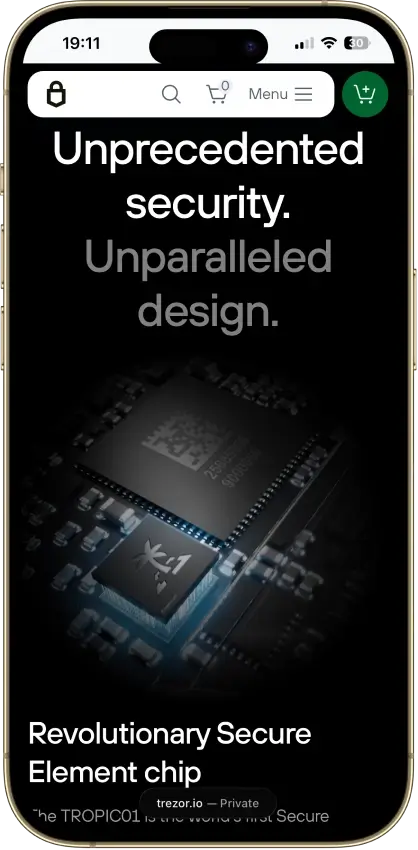
  • Premium Trezor security with wireless convenience
Rank 5
6.0
Multi-platform wallet
Desktop-first Monero users who want privacy defaults and advanced controls
Desktop (macOS)Desktop (Windows)Desktop (Linux)
  • Monero-first desktop wallet with deeper controls than many lighter wallets
  • Built-in Tor, reproducible builds, and bootstrappable build process
  • Strong hardware wallet support for Ledger and Trezor Monero devices
Rank 6
5.5
Multi-platform wallet
Desktop-first users who want the official Monero desktop wallet for XMR self-custody
AndroidDesktop (Windows)Desktop (macOS)Desktop (Linux)
  • Official Monero desktop wallet with Simple mode, Simple mode (bootstrap), and Advanced mode
  • Supports both remote-node use and deeper local-node control
  • Works with selected Ledger and Trezor devices for Monero storage
Rank 7
4.5
Hot wallet (mobile)
Android-first Monero users who want deeper privacy and node control
Android
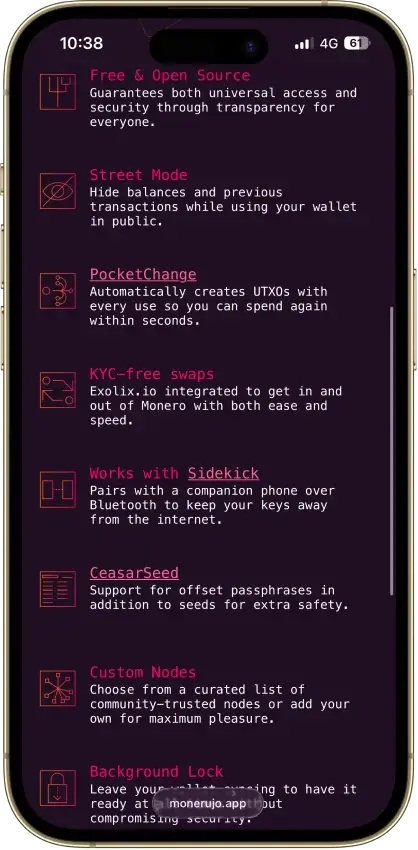
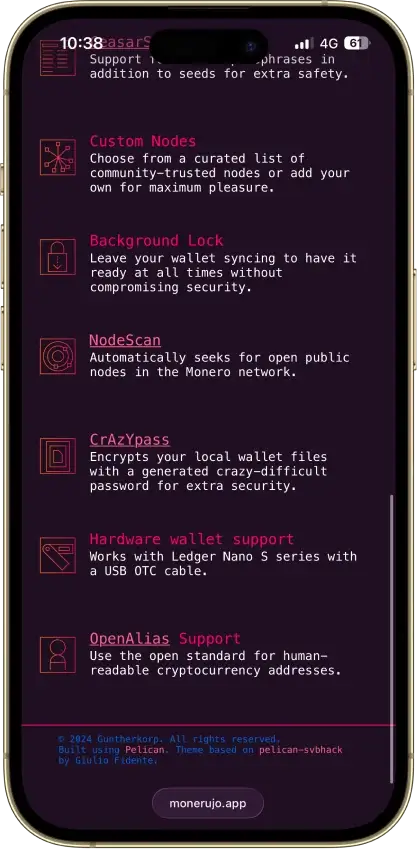
  • Monero-first Android wallet with custom nodes, Street Mode, and PocketChange
  • Optional Sidekick pairing can keep keys on a second Android phone over Bluetooth
  • Built-in Exolix swap access without wallet-level KYC

If you’re choosing between these wallets, start with how you plan to use XMR day to day. Desktop wallets like Monero GUI and Feather suit users who want more control over syncing and node choice, while mobile apps like Cake Wallet and Monerujo are designed for quick access and smaller spending balances. Hardware setups (Ledger and Trezor) are about keeping keys offline for long-term storage, and multi-coin wallets like Stack Wallet and Edge are mainly for people who want Monero alongside a broader portfolio. The comparison table below is the fastest way to compare those differences at a glance.

Comparison Table

NameCustodyBlockchainsHardward SupportStakingFiat On-ramp
Ledger Flex Non-custodial Bitcoin, Polygon, Ethereum, BNB Smart Chain, Avalanche, Tron, Arbitrum, Base, Optimism, Solana No Limited Yes
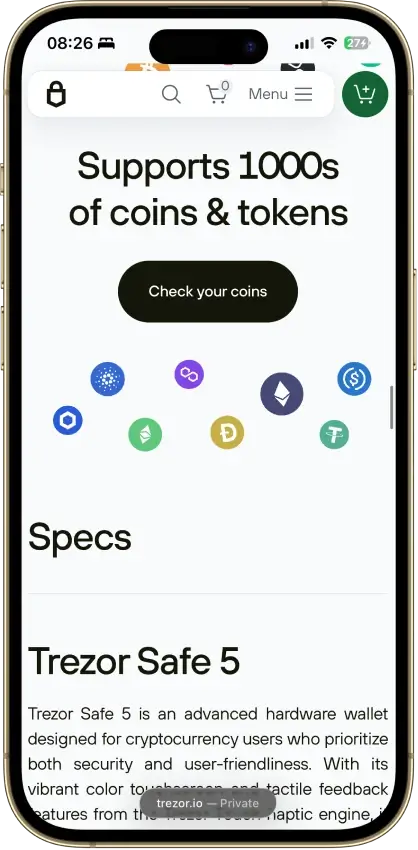
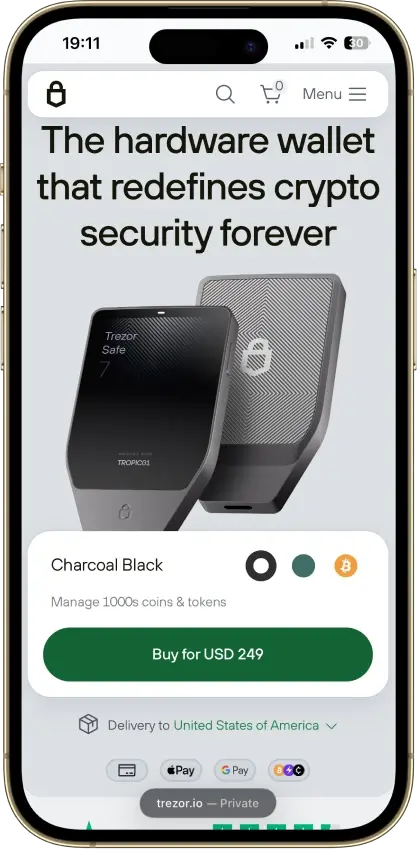
Trezor Safe 5 Non-custodial Bitcoin, Ethereum, BNB Smart Chain, Avalanche, Arbitrum, Base, Optimism, Polygon, Solana No Limited Yes
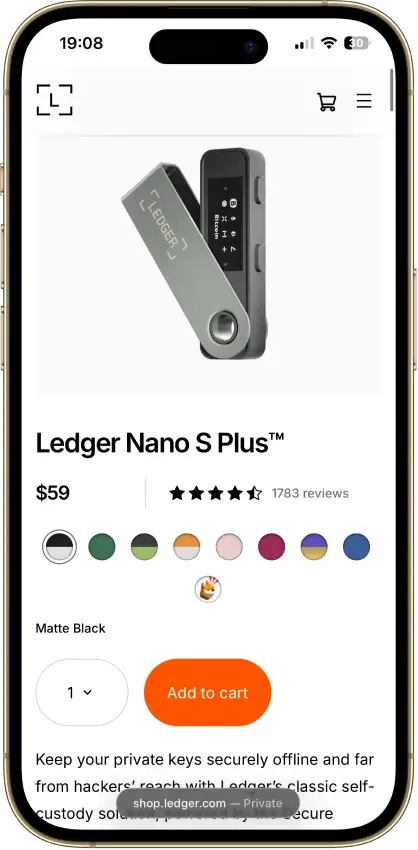
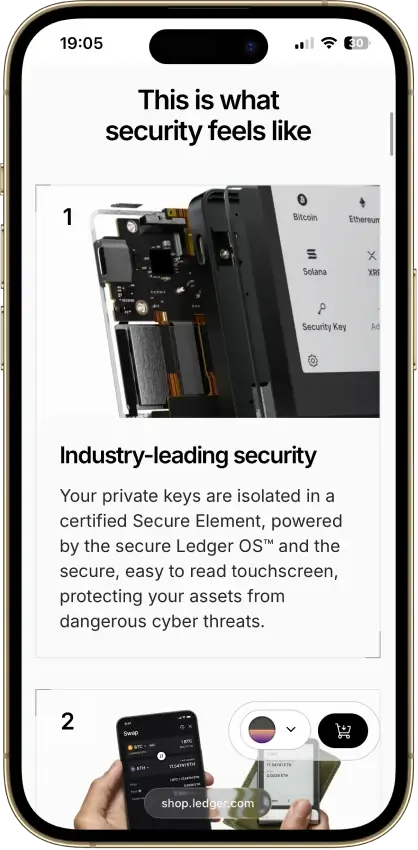
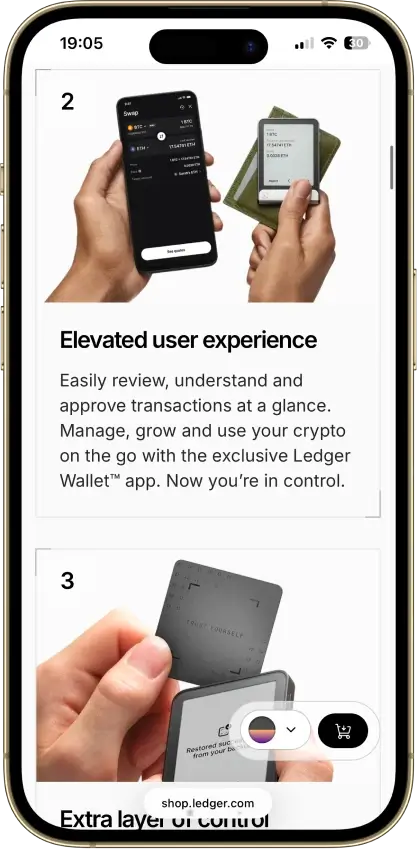
Ledger Nano S Plus Non-custodial Bitcoin, Ethereum, BNB Smart Chain, Avalanche, Tron, Arbitrum, Base, Optimism, Polygon, Solana No Limited Yes
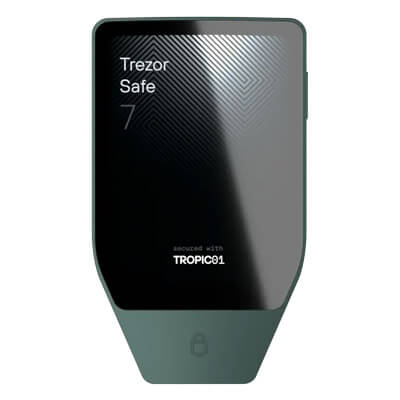
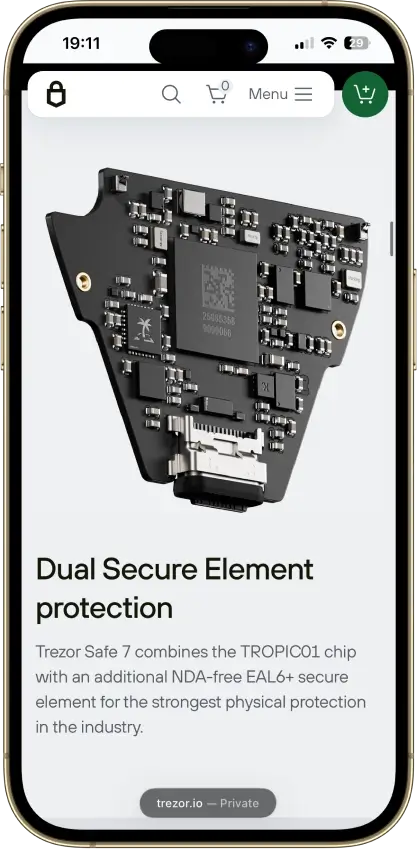
Trezor Safe 7 Non-custodial Bitcoin, Ethereum, BNB Smart Chain, Avalanche, Arbitrum, Base, Optimism, Polygon, Solana No Limited Yes
Feather Wallet Non-custodial Yes No
Monero GUI Wallet Non-custodial Yes None No
Monerujo Wallet Non-custodial Yes None No

The two biggest filters here are sync model and hardware compatibility. Cake Wallet, Feather, Monerujo, and Stack Wallet fall into Monero’s local-synchronization bucket: they can connect to remote nodes, but they scan the blockchain on-device without sharing keys with the node. Edge is different: it uses remote lightweight synchronization and shares the private view key with a remote server to scan for transactions. On hardware compatibility, the current official Monero matrix lists Ledger Nano S, Nano S Plus, and Nano X with Monero GUI, Monero CLI, Cake Wallet / Monero.com, Feather, and Monerujo; and Trezor Model T, Safe 3, and Safe 5 with Monero GUI, Monero CLI, and Feather.

Detailed Reviews

Feather Wallet

Rank5
Our score6.0

Feather Wallet is a free, open-source Monero desktop wallet for Linux, Tails, Windows, and macOS. It ships with built-in Tor, coin control, offline signing via animated QR codes, and hardware wallet support for Ledger and Trezor Monero devices. New wallets use a 16-word Polyseed by default, and the app can also restore 14-word and 25-word seeds. There are no swaps, no fiat on-ramp, no mobile app, and no multichain support. It suits desktop XMR users who want more control than a basic wallet offers, and less friction than the CLI.

Pros

  • Built-in Tor works out of the box, so users do not need to install and configure Tor separately just to get started.
  • Monero power-user tools are unusually deep for a desktop wallet, including freeze/thaw, manual input selection, sweep tools, transaction proofs, and transaction rebroadcasting.
  • Hardware wallet support is strong for Monero users, covering current Ledger and Trezor devices that support Monero in Feather.
  • Offline transaction signing with animated QR codes gives privacy-focused users a workable air-gapped flow without forcing them into a dedicated hardware wallet.
  • Reproducible builds, signed release artifacts, and updater verification add more trust signals than many smaller wallet projects provide.

Cons

  • Feather is Monero-only, so it is a poor fit for users who want one wallet for Bitcoin, Ethereum, Solana, or stablecoins.
  • There is no official mobile app, browser extension, WalletConnect flow, or other web3 access path.
  • Built-in swaps, staking, and fiat cash-out tools are not part of the wallet, so users need outside services for those jobs.
  • The feature depth is useful, but it also means new users can run into more settings, node choices, and transaction options than they may want.
  • Older screenshots and older guides can mislead readers: the Reddit and LocalMonero plugins were removed in 2.6.8, Prestium was removed in 2.8.0, and the Mining plugin was marked deprecated in 2.8.0.

Monero GUI Wallet

Rank6
Our score5.5

Monero GUI Wallet is the official desktop wallet for XMR and works best for people who want direct, non-custodial Monero use without touching the command line. It offers Simple mode, Simple mode (bootstrap), and Advanced mode, plus support for local nodes, remote nodes, pruning, and selected Ledger and Trezor devices. The wallet is free, open-source, and focused on Monero only. That focus is both the strength and the limit. You get deeper control than most lightweight wallets, but no mobile app, no multi-chain support, and more setup friction if you want stronger privacy through a local node on your own machine.

Pros

  • Official Monero wallet with current desktop builds for Windows, macOS, and Linux.
  • Three wallet modes. Simple mode is the fastest start, Simple mode (bootstrap) lets you use a remote node while a local node syncs in the background, and Advanced mode gives full control over node and wallet behavior.
  • Supports local nodes, remote nodes, and blockchain pruning. That helps users balance privacy, storage use, and sync time.
  • Works with supported Ledger and Trezor devices for people who want Monero access without keeping signing keys only in a desktop wallet.
  • Includes tools that fit real Monero use, such as a merchant page, in-app fiat value display, and solo-mining access in the advanced interface.

Cons

  • XMR only. It does not support Bitcoin, Ethereum, stablecoins, NFTs, or other chains.
  • Desktop only. There is no official Monero GUI app for iPhone or Android.
  • No swaps, staking, dApp access, or DeFi features. People who want a broader crypto app will outgrow it quickly.
  • Full local sync takes time and storage unless you use pruning or a remote node.
  • The interface is functional, not slick. Advanced mode can feel busy if you only want quick sends.

How We Rank Monero Wallets

We score Monero wallets using the same 10-metric rubric used across CryptoSlate’s crypto wallet hub. Each metric is graded on a simple scale:

  • 1.0 = meets the standard clearly
  • 0.5 = partially meets the standard
  • 0.0 = unclear, missing, or not supported

Wallets are security products first, so the biggest drivers of a high score are whether you control your keys, how clearly the wallet explains its security model, how easy it is to recover safely, and how well it protects users from real-world scams.

Here are the metrics we use for every wallet rating:

MetricWhat we evaluate
Custody + PortabilityWhether you control the keys and can migrate without lock-in
Key Security Model ClarityHow clearly the wallet explains how keys are protected (hardware isolation, secure element, MPC, etc.)
Independent Security ValidationEvidence of audits, bug bounties, and a real disclosure process
Recovery QualityHow robust and user-proof recovery is (seed, passphrase, MPC/social recovery, guided checks)
Scam/Drainer ResistanceWarnings, simulations, allowance tools, and protections against malicious approvals and phishing
Incident History + Response MaturityWhether incidents are handled transparently and fixes are shipped quickly
dApp Connectivity CoverageHow well the wallet connects to common apps and ecosystems (when relevant)
Signing UX QualityHow clearly the wallet explains what you are approving before you sign
Smart-Wallet UX (AA Readiness)Support for modern account models and safer UX patterns (when relevant)
Fiat Rails + “Bank Wallet” FunctionalityOnramps/offramps and money-in, money-out usability (when relevant)

For Monero wallets specifically, the framework stays the same, but the “most decisive” criteria are usually custody + portability, key security clarity, independent validation, recovery quality, scam resistance, and signing UX. dApp connectivity, smart-wallet UX, and fiat rails may still be scored, but they are often less important for Monero-first wallets than they are for EVM- or DeFi-heavy wallet apps.

Quick-Start — Choose the Right XMR Wallet in 2 Minutes

If you’re not sure where to start, use this quick guide:

  • I want the best XMR wallet for desktop control → Monero GUI
  • I want a lighter desktop XMR wallet → Feather Wallet
  • I want the easiest Monero wallet app → Cake Wallet
  • I want an Android-only Monero wallet → Monerujo
  • I want cold storage for XMR → Ledger Nano S, Nano S Plus, or Nano X with Monero GUI, Monero CLI, Cake Wallet / Monero.(dot)om, Feather, or Monerujo; or Trezor Model T, Safe 3, or Safe 5 with Monero GUI, Monero CLI, or Feather
  • I want a multi-coin wallet that supports XMR → Stack Wallet (or Edge for a simpler mobile-first option)

If your goal is to set up an XMR wallet quickly, start with Cake Wallet for mobile convenience or Monero GUI for a desktop-first setup, then make a small test transfer before moving a larger balance.

Advanced Pick: Monero CLI

If you want the most feature-complete official option, Monero CLI deserves a mention.

Monero’s docs describe monero-wallet-cli as the most reliable and most feature-complete wallet for Monero. It supports local or remote nodes, hardware wallets, and more advanced workflows than most mobile apps.

That does not make it the best choice for beginners. But for power users, developers, and people who want maximum control, Monero CLI is one of the strongest XMR wallet options available.

What Makes Monero Wallets Different?

Choosing a Monero wallet is different from choosing a Bitcoin wallet or an EVM wallet because Monero is built around default privacy. With XMR, you are not just picking an app to hold coins. You are also choosing how the wallet connects to the network, how much control you have over syncing, and how much convenience you are willing to trade for stronger privacy and deeper self-custody.

That is why concepts like local nodes, remote nodes, and wallet architecture matter more here. A fuller desktop setup can give users more control and a stronger privacy posture, but it also takes longer to install, sync, and maintain. Lighter mobile and multi-coin wallets are usually faster and easier to use, though they can be less flexible for users who want more say over how their Monero wallet scans, syncs, and behaves.

The result is that the best Monero wallet is not always the same as the best general crypto wallet. A polished multi-asset app can still work for casual XMR use, but if you care most about native Monero support and long-term control, you’ll get more value from a wallet built for Monero (Monero GUI or Feather) or a hardware-wallet setup paired with compatible software.

Types of Monero Wallets Explained

Not every Monero wallet works the same way, and that is a big part of why choosing the right one matters. Some wallets give you more control over privacy and syncing, while others are designed to make XMR easier to use on a phone or alongside other coins. In practice, most Monero wallets fall into four main categories.

Wallet Types At A Glance

Monero wallet types tend to fall into a predictable pattern. Desktop-first setups usually score best for control and long-term self-custody because they give you more say over syncing and how your wallet connects to the network. Mobile and light wallets win on speed and usability, making them better for everyday access and spending balances. Hardware wallet setups sit in their own lane: they are the strongest option for cold storage because keys stay offline, even if the user experience is less convenient.

Wallet typeBest forMain strengthsMain drawbacksCommon examples
Full-node desktop walletsMaximum control and a Monero-native setupStrong control over syncing and wallet behavior; best fit for long-term desktop self-custodyHeavier setup; slower first sync; more storage/bandwidthMonero GUI (desktop)
Light walletsFaster desktop access without a full-node feelQuicker to get running; more flexible for power usersLess “guided” than the official GUI; more hands-onFeather Wallet (desktop)
Mobile walletsEveryday use and quick access to XMRBest convenience for checking balances and sending/receiving on the goBetter for spending balances than long-term storageCake Wallet, Monerujo
Hardware wallet setupsCold storage and long-term holdingKeys stay offline; transactions require physical confirmationExtra setup steps; less convenient for frequent transfersLedger Nano S / S Plus / X with Monero GUI, Monero CLI, Cake Wallet / Monero.com, Feather, or Monerujo; Trezor Model T / Safe 3 / Safe 5 with Monero GUI, Monero CLI, or Feather

If you are new to XMR, a practical approach is to keep a small spending balance in a mobile wallet and store larger holdings in a hardware wallet setup. If your priority is maximum control, start with a desktop wallet (Monero GUI or Feather) and only move to lighter options if you decide you want more convenience. Next, we’ll map which wallets support Monero and where they fit across these categories.

What Wallets Support Monero?

If you’re wondering which wallet supports Monero, start with a simple reality check: XMR is not an EVM token you can “add” with a contract address. Wallets that truly support Monero handle XMR as a native chain and expose Monero-specific basics like node selection, restore flows, and (in some cases) view-only monitoring. That’s why wallets built specifically for Monero — and hardware wallets paired with Monero-compatible software — are the safest starting point.

Here are the main categories of wallets that support Monero and the most common picks in each group.

CategoryWalletNotes
Desktop (Monero-first)Monero GUIOfficial desktop wallet
Desktop (Monero-first)Monero CLIOfficial advanced command-line wallet
Desktop (Monero-first)Feather WalletLightweight desktop Monero wallet
Mobile (Monero-first apps)Cake WalletBeginner-friendly Monero wallet app
Mobile (Monero-first apps)MonerujoAndroid-focused Monero wallet
Hardware wallet setups (cold storage for XMR)LedgerNano S / S Plus / X; use with Monero GUI, Monero CLI, Cake Wallet / Monero(dot)com, or Feather
Hardware wallet setups (cold storage for XMR)TrezorModel T / Safe 3 / Safe 5; use with Monero GUI, Monero CLI, or Feather
Multi-coin wallets that support MoneroStack WalletMulti-asset wallet with local synchronization; auto-connect or choose your own node
Multi-coin wallets that support MoneroEdgeMulti-asset mobile wallet with remote lightweight synchronization; private view key shared with a server

Before you download anything, re-check current support on the wallet’s official site or app listing. Wallet support can change over time, and with Monero it is especially important to confirm you are using a legitimate download source.

Why MyMonero Is Not On This List

MyMonero sunset its wallet service on January 6, 2026. The project directed users toward Cake Wallet for continuity and said all MyMonero server-side data would be permanently destroyed by February 6, 2026.

That makes MyMonero a migration case, not a current wallet recommendation.

Why Exodus Is Not On This List

Exodus is not a current Monero wallet option.

Exodus officially ended Monero (XMR) support on August 18, 2025 and now tells remaining XMR users to import their Exodus Monero wallet into another compatible wallet such as Cake Wallet.

Monero GUI Wallet — Who It Suits Best

Monero GUI is the official desktop wallet for XMR. It’s a strong fit if you want a Monero-focused setup, clear self-custody, and the option to run a local node instead of relying on third-party infrastructure.

If you’re specifically looking for a Monero wallet for Windows 10, Monero GUI is a reliable default because it shows you what’s happening while the wallet syncs and gives you direct access to node settings. If you need a monero wallet linux option, it’s also a common pick for the same reason: you get a more transparent, controllable workflow than most generic multi-coin apps.

Choose Monero GUI over Cake Wallet when desktop control matters more than mobile convenience — for example, when you want to pick your node, monitor sync status closely, or keep the core wallet experience focused on sending and receiving XMR without extra “buy/swap” layers. If you want the simplest install-and-go Monero wallet app on a phone, Cake is the smoother choice. If you prefer a lighter desktop wallet and don’t mind a more hands-on experience, Feather is often the better match.

The main friction is setup time. The first sync can be slow, and a fuller desktop setup may use more storage and bandwidth than a mobile wallet. If you mainly need quick balance checks and small transfers, a mobile wallet can feel faster. If you prioritize native Monero control and long-term reliability, Monero GUI remains the benchmark.

Monero Hardware Wallets and Cold Storage

A Monero hardware wallet setup is one of the safest ways to store XMR long term because your private keys stay on a dedicated device instead of living on your phone or computer. This is what most people mean when they search for a Monero cold wallet, an offline Monero wallet, or even a “Monero wallet USB” setup: you keep your keys off an internet-connected device and only approve transactions when you physically connect the hardware wallet.

Key point: Ledger and Trezor are not standalone Monero wallet apps. For XMR, use a compatible companion wallet rather than a native hardware-wallet app. Current official Monero support is: Ledger Nano S, Nano S Plus, and Nano X with Monero GUI, Monero CLI, Cake Wallet / Monero.com, Feather, and Monerujo; and Trezor Model T, Safe 3, and Safe 5 with Monero GUI, Monero CLI, and Feather. The software handles the interface and syncing, while the hardware wallet handles secure key storage and transaction signing.

Important: Ledger’s own app does not currently create Monero accounts. Use a compatible companion wallet such as Monero GUI, Monero CLI, Cake Wallet / Monero(dot)com, Feather, or Monerujo instead.

Important: Trezor Suite does not natively support Monero. Use Monero GUI, Monero CLI, or Feather instead. Trezor also derives Monero keys using SLIP10, so you can always recover Monero onto another Trezor device, but compatibility with non-Trezor Monero wallets is not guaranteed.

OptionBest forTypical setupWhat you getMain trade-off
Ledger (hardware wallet)Long-term storage with a widely used hardware ecosystemLedger device + Monero GUI or FeatherKeys stay offline; transactions require device confirmationLess convenient for frequent sending and receiving
Trezor (hardware wallet)Cold storage with a more open-source leaningTrezor device + Monero GUI or FeatherKeys stay offline; transactions require device confirmationAlso requires a paired desktop wallet and extra setup steps

If you are choosing between them, the decision is usually less about “which one supports Monero” and more about the hardware wallet experience you prefer and what you already use. If you already own one device, it is usually more practical to stick with it and focus on setting up your companion wallet correctly.

For many users, the best approach is a split: keep a smaller spending balance in a mobile Monero wallet for convenience, and store the larger long-term balance in a hardware wallet setup. That way you get everyday usability without making your full holdings depend on a hot wallet.

Best Monero Wallet Apps for Mobile

A mobile Monero wallet is a practical choice if you want quick access to XMR for everyday use — checking balances, receiving Monero, and sending smaller transactions without needing a desktop setup. Mobile wallets prioritize convenience, which makes them a better fit for a spending balance than for long-term storage.

Best Monero Wallet for Android

If you searched for a monero wallet android app, Cake Wallet is the easiest all-round pick for most people. If you prefer an Android-first wallet that feels more Monero-native, Monerujo is a strong alternative. The choice comes down to whether you want maximum simplicity (Cake) or a more hands-on, Monero-focused Android experience (Monerujo).

Android Power-user Note: Monerujo Sidekick

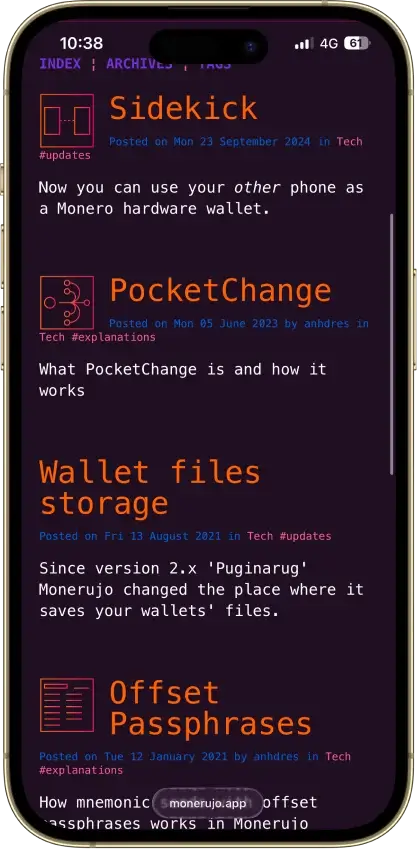
Monerujo has a differentiator worth calling out for Android users: Sidekick.

Sidekick lets you use a secondary offline phone to authorize access to your Monero wallets in Monerujo. As long as that second phone stays offline, it works like a DIY Bluetooth-powered hardware wallet.

That makes Monerujo unusually interesting for Android users who want stronger key isolation without buying a dedicated hardware wallet.

Best Monero Wallet for iPhone

For monero wallet ios users, Cake Wallet is the most practical option for many because it is widely used, beginner-friendly, and designed with Monero in mind. If you are new to XMR, it is a solid starting point before deciding whether you want to move to a desktop wallet later for more control.

Best Multi-Coin Wallet App That Supports XMR

If your priority is holding Monero alongside other assets in one app, Stack Wallet is a more natural fit than Monero-only wallets. Edge is another option for users who want a mainstream multi-asset wallet experience with Monero support. Just keep expectations realistic: multi-coin wallets are less tailored to Monero-specific workflows than Monero-focused apps.

Mobile wallet tip: Consider keeping a smaller spending balance on your phone and storing larger long-term holdings in a hardware wallet setup. And before downloading any Monero wallet app, verify current XMR support and use official app store listings or the project’s official download links to avoid copycat apps.

Are Online or Web Monero Wallets Safe?

An online Monero wallet or Monero web wallet can sound convenient, but it is not usually the best default for storing XMR. The main risk is that anything “web-first” increases your exposure to phishing, fake domains, and third-party infrastructure you do not control. Even if a service claims to be non-custodial, the safest assumption is that a browser-based experience adds more attack surface than a dedicated wallet app.

Do not treat remote-node wallets and lightweight view-key wallets as the same thing.

Local-sync Monero wallets such as Cake Wallet, Feather, Monerujo, and Stack Wallet can connect to remote nodes while still scanning the blockchain on your device without sharing keys with the node.

Edge is different: Monero categorizes it as a remote-synchronization lightweight wallet, which shares the private view key with a remote server to scan for transactions.

That distinction matters for privacy. A remote node can still learn about activity patterns and your IP address, but a lightweight view-key model reveals more than a normal local-sync remote-node setup. For larger balances and stronger privacy, a Monero-native desktop wallet or hardware-wallet setup is the safer default.

Quick Safety Checklist for Online or Web-First Monero Storage

  • Avoid entering a seed phrase on a website. If a site asks for it, that is a major red flag.
  • Use official download sources and verified app listings, not ads or lookalike domains.
  • Prefer wallets that let you choose or change node settings instead of locking you into a single provider.
  • Keep only a spending balance online. Store larger balances in a hardware wallet setup or a desktop wallet you control.

Used carefully, “online” Monero access can be fine for quick transactions. But if your priority is privacy, long-term security, and control over how your wallet connects and syncs, a Monero-first desktop wallet or cold-storage setup will usually be the better fit.

How to Get a Monero Wallet

Getting a Monero wallet is straightforward, but it is worth doing it carefully. For a safe monero wallet download (or xmr wallet download), stick to official sources and avoid ads, mirrors, or lookalike domains. With XMR, the biggest risks are downloading a fake app, losing your recovery phrase, or sending funds to the wrong address. The steps below cover the safest “default” setup for desktop, mobile, and hardware wallets.

Download a Desktop Monero Wallet

If you want the most Monero-native experience, start with Monero GUI. If you want a lighter desktop option, Feather Wallet is a common alternative.

  1. Pick your wallet: Monero GUI (official, more guided) or Feather (lighter, more hands-on).
  2. Download from an official source: Use the project’s official site and avoid ads, mirrors, or random “download” pages.
  3. Verify the download before installing: The official Monero site publishes SHA256 hashes, a GPG-signed canonical hash list, and step-by-step verification guides. Do not skip this step.
  4. Install and create a new wallet: Choose “create new wallet” and set a strong local password.
  5. Back up your recovery phrase: Write it down offline and store it somewhere safe. Do not save it in cloud notes or screenshots.
  6. Let the wallet sync before moving a large balance: The first sync can take time.

Install a Mobile Monero Wallet

If you want the easiest Monero wallet app, Cake Wallet is a common starting point. For Android users who want an Android-first Monero wallet, Monerujo is a strong alternative.

  1. Install from official listings: Use the Apple App Store or Google Play, and confirm the publisher matches the official project.
  2. Create a new wallet and back up the seed phrase: Treat the recovery phrase as the wallet. Anyone with it can access your funds.
  3. Set basic safety options: Use a device passcode, enable biometric lock if offered, and do not share wallet screenshots.
  4. Do a small test deposit first: Receive a small amount of XMR to confirm everything works before moving larger funds.

Set Up a Hardware Wallet for Monero

A Monero hardware wallet setup (Ledger or Trezor) is a good choice for long-term storage. With XMR, use a compatible companion wallet rather than a native hardware-wallet app.

  1. Initialize the hardware wallet: Set a PIN and write down the device recovery phrase offline.
  2. Install a compatible companion wallet. Current official Monero support is: Ledger Nano S, Nano S Plus, and Nano X with Monero GUI, Monero CLI, Cake Wallet / Monero(dot)com, Feather, and Monerujo; and Trezor Model T, Safe 3, and Safe 5 with Monero GUI, Monero CLI, and Feather.
  3. Connect the device and create/link the Monero wallet: The wallet software will guide you through connecting and signing with the hardware device.
  4. Send a small test amount first: Confirm you can receive and send XMR before moving larger balances.

No matter which option you choose, do not move your full balance right away. Make a small test transfer, confirm it arrives, then move the rest.

Final Step: Verify the Download Before You Install

For Monero GUI and Monero CLI, the official Monero site publishes:

  • SHA256 hashes
  • a GPG-signed canonical hash list
  • step-by-step verification guides

For Feather, the project also publishes a release signing key and verification instructions.

For XMR storage, download verification should be treated as part of setup, not as an optional extra. With Monero, a fake wallet download is one of the highest-risk failure points.

Backup, Recovery and Seed Phrase Storage

With any Monero wallet, your ability to recover funds comes down to one thing: whether you can restore the wallet safely if your phone, computer, or hardware device is lost. That is why backing up XMR properly matters more than choosing “the best Monero wallet” on paper.

Here is the difference between the pieces people often confuse:

  • Wallet app: The software you use to send and receive XMR (for example, Monero GUI, Cake Wallet, or Feather). You can always reinstall an app.
  • Wallet file: A file stored on your device (common on desktop wallets) that contains wallet data and settings. Losing it can be annoying, but it is not the end of the world if you still have your recovery phrase.
  • Seed phrase (recovery phrase): The real backup. This is the set of words that can recreate your wallet and access your funds. Anyone who gets it can take your XMR.
  • Device access (PIN/password/biometrics): This protects the wallet on your phone or computer, but it does not replace a seed backup.

Monero Seed Formats Are Not All The Same

Monero wallet recovery is not one-format-fits-all.

The current Monero ecosystem uses three main seed styles:

  • Legacy Monero seed: 25 words
  • MyMonero seed: 13 words
  • Polyseed: 16 words

For Monero, Cake Wallet currently documents 16-word Polyseed as the default and also supports 25-word legacy seeds. Cake’s MyMonero migration guide also documents an optional 12-word BIP39 Monero flow for users who want one seed across multiple assets in Cake.

Feather uses 16-word Polyseed by default and can also restore 14-word and 25-word Monero seeds.

The practical takeaway: when backing up or restoring XMR, do not assume every Monero wallet uses the same seed format. Always note the exact wallet type and seed format you created.

How Monero Wallet Recovery Works

If you lose your device, you typically restore your Monero wallet by installing the wallet again (or installing a compatible wallet) and choosing restore from seed phrase. The wallet will then rescan the blockchain history to rebuild your balance and transactions.

Many Monero wallets also ask for a restore height during recovery. You can think of restore height as a “starting point” for scanning: the closer it is to when you created the wallet (or first used it), the faster the rescan tends to be. If you do not know it, most wallets can still restore, but it may take longer.

Backup Best Practices for XMR

  • Write the seed phrase down offline and store it somewhere secure. Avoid screenshots, cloud notes, email drafts, and password managers you do not fully trust.
  • Make two backups and keep them in separate physical locations (for example, home and a secure backup spot).
  • Never type your seed phrase into a website. If a “support agent” or a “recovery page” asks for it, it is almost always a scam.
  • Test your backup once by doing a small restore check (or at minimum, confirm you can re-open the wallet using the correct password).
  • For hardware wallets, back up the device recovery phrase too. That phrase is what restores access if the device is lost or damaged.

If you do only one thing after setting up your Monero wallet, make sure your seed phrase is written down correctly and stored safely. That single step prevents most “lost wallet” disasters.

Monero Wallet Lookup and Transaction Verification

Searches like Monero wallet lookup or XMR wallet lookup are usually based on how transparent chains work, where anyone can paste an address into a block explorer and see balances and transfers. Monero does not work that way. Because XMR transactions are designed to hide key details by default, there is no reliable “public wallet lookup” tool that can show a wallet’s full balance or transaction history just from an address.

What You Can Verify Publicly

You can still verify that the network is processing transactions and that blocks are being produced. Block explorers can also show limited transaction-level data. But you generally cannot use public tools to prove that a specific address holds a certain balance, or to trace a transaction to a recipient address in the same way you can with Bitcoin or EVM chains.

How to Verify an XMR Payment in Practice

If you are trying to confirm that an XMR payment arrived, the most reliable approach is to verify it from inside the recipient wallet.

  • For personal use: Open your wallet and check incoming transfers after the wallet has synced.
  • For merchants or support disputes: Ask for the transaction ID (txid) and verify it against what your wallet shows.
  • If you need third-party verification: Some Monero wallets support a view-only setup (where you can monitor incoming transfers without spending ability) or provide a way to generate a payment proof to show that a specific payment was sent.

Safety Warning: Avoid “Wallet Lookup” Scams

Be cautious with websites that claim they can “look up” a Monero wallet balance or ask you to paste a seed phrase, private keys, or a wallet file for verification. Legitimate verification should never require you to reveal your seed phrase, and most real-world confirmation can be done using your wallet’s own history and sync status.

The bottom line is simple: with Monero, transaction verification is possible, but it is usually done through wallet-side checks (and optional proofs), not through public address lookups.

View-only Wallets and Payment Proofs

Monero does not have a normal public balance-explorer workflow, so read-only monitoring matters more here than it does on transparent chains.

Official Monero docs include view-only wallets and payment proofs. A view-only wallet can see incoming transactions but cannot sign transactions, and it cannot properly account for all outgoing activity unless key images are imported.

Cake Wallet also documents an important caveat: Monero view-only wallets usually do not show an accurate balance and will not show some types of outgoing transactions.

For merchants, audits, or support disputes, this is the better framing: Monero verification usually happens through wallet-side checks, view-only monitoring, and payment proofs, not by pasting an address into a public explorer.

Fees and What “Free Monero Wallet” Really Means

Many of the best Monero wallet options are free to download, which is why searches like free Monero wallet or free XMR wallet are so common. But “free” usually refers to the wallet software itself, not the full cost of using Monero.

Here is what you may still pay for, depending on how you store and move XMR:

  • Free wallet software: Most Monero wallets are free apps (desktop or mobile) that let you hold your own keys.
  • Network fees: When you send XMR, the network charges a fee to process the transaction. This fee is paid in XMR and goes to the network, not the wallet app.
  • Hardware purchase cost: A hardware wallet setup is not free because you are buying a device. You are paying for stronger long-term key security and offline signing.
  • Built-in swap or partner fees: If your wallet includes swaps, buying, or selling features, those services often come with spreads or provider fees. Even if the wallet app is free, the partner service may not be.

In other words, a “free Monero wallet” can be a great choice, but it is still worth checking what costs apply to the actions you plan to take. If you only need self-custody storage and occasional transfers, your costs are mostly network fees. If you plan to swap in-app, buy through partners, or store long term on a hardware wallet, there can be additional costs beyond the wallet download itself.

Privacy, KYC, and In-App Swaps

Monero is popular because XMR transactions are designed around privacy by default, but it is still important to separate wallet privacy from service policies. A non-custodial Monero wallet can keep you in control of your keys and reduce on-chain transparency, yet the moment you use third-party services (buy buttons, swaps, or fiat ramps), you are stepping into someone else’s compliance and data-collection rules.

People also search for an anonymous Monero wallet, but it is important not to overpromise. Monero can improve on-chain privacy, but it does not erase what exchanges, onramps, or swap providers may collect (or require) when you use their rails.

Wallet Privacy vs Partner Requirements

  • Wallet privacy: The wallet is self-custody, meaning you control the keys. Monero’s network also aims to keep transaction details private, which reduces what outsiders can learn from chain data alone.
  • Partner requirements: In-app swaps, card purchases, and fiat onramps are usually powered by external providers. Those providers may require KYC, block certain countries or regions, and collect information to meet legal and risk requirements — even if the wallet itself is non-custodial.

What to Expect From In-App Swaps

In-app swaps can be convenient, but they often come with drawbacks:

  • You may see identity checks or limits depending on the provider and your location.
  • Fees can include spreads and provider charges beyond the network fee.
  • You are trusting a third party for execution, which is different from simply sending XMR from one wallet to another.

Practical Tips

  • Check who the provider is before you use “buy” or “swap” inside a wallet. The provider name is often shown in the flow.
  • Read the limits and verification triggers so you are not surprised mid-transaction.
  • Use small test amounts first if you are trying a new swap path.
  • Avoid assuming anonymity. Self-custody and Monero privacy help, but they do not erase what a provider, exchange, or payment company may know about you if you use their rails.

If your priority is maximum privacy and minimal third-party exposure, treat in-app swaps as optional convenience tools, not a required part of using a Monero wallet.

Monero Wallet Security Tips and Scam Warning Signs

Most Monero wallet losses do not happen because someone “hacks Monero.” They happen because users download a fake wallet, get tricked by fake support, or leak their recovery phrase. A few small habits dramatically reduce the risk, especially if you are installing a Monero wallet for the first time.

Common Monero Wallet Scams to Watch For

  • Fake download sites: Lookalike domains and sponsored ads that imitate Monero GUI, Cake Wallet, or other projects.
  • Fake support contacts: Telegram, Discord, or email “support” that asks for your seed phrase, wallet file, or remote access.
  • Malicious APKs: Android installs from unofficial sources that bundle malware or keyloggers.
  • Clipboard malware: Malware that replaces a copied Monero address with an attacker’s address right before you paste.
  • Seed phrase theft: Any request to share, type, or “verify” your recovery phrase outside your wallet app.

Quick Security Checklist (Do This Before Moving Funds)

  • Download wallets only from official project sites or verified app store listings. Avoid ads and lookalike domains.
  • Never share your seed phrase or private keys. No legitimate wallet support will ever ask for them.
  • For Android, avoid random APK downloads. If you must use an APK, confirm it is from the official publisher and verify signatures when possible.
  • After you paste a receive address, double-check the first 4–6 and last 4–6 characters before sending.
  • Make a small test transfer first, then send the full amount once you confirm it arrived.
  • Keep a spending balance in a hot wallet, and store long-term holdings in a hardware wallet setup when possible.

If you follow the checklist above, you avoid the most common Monero wallet scams while keeping setup practical for everyday use.

Troubleshooting Common Monero Wallet Problems

Monero wallets can be a little more “hands-on” than typical multi-chain apps because syncing and node choices matter. If something looks wrong, start with the basics: make sure your wallet is fully synced and your device has a stable internet connection. Then work through the most common fixes below.

Wallet Not Syncing

  • Give it time on first setup: The first sync can take longer than people expect, especially on desktop.
  • Switch nodes: If your wallet supports it, try changing the remote node or using a different node setting.
  • Check time and date settings: Incorrect device time can cause connection and sync problems.
  • Update the wallet: If you are on an older version, update to the latest release and try again.

Balance Not Showing or Incoming Transfer Missing

  • Confirm the wallet is synced: An unsynced wallet often shows an old balance.
  • Wait for confirmations: Deposits can take time to appear depending on wallet and sync status.
  • Double-check the receiving address: If you used a subaddress, make sure you are viewing the right account/subaddress inside the wallet.
  • Rescan if needed: Many wallets have a rescan option that can fix missing history after an interrupted sync.

Restore Not Working Properly

  • Verify the seed phrase: One wrong word or spelling error will break a restore.
  • Use a reasonable restore height: If your wallet asks for restore height, set it close to when you created the wallet or first received XMR. If you set it too high, older deposits may not show; if you set it too low, scanning can take longer.
  • Let the rescan finish: Restores can look “stuck” while the wallet rescans history.

Remote Node Issues

  • Try a different node: Remote nodes can go down or become slow. Switching often fixes the issue immediately.
  • Avoid unknown nodes for sensitive use: For better control, use a trusted node or your own node when possible.
  • Check firewall/VPN settings: Some networks block the ports a node needs.

Hardware Wallet Not Detected

  • Use the original cable and a direct USB port: Hubs and “charge-only” cables cause many connection failures.
  • Unlock the device and open the correct app: Make sure the device is unlocked and the relevant app is open (if required by the device).
  • Update firmware and software: Outdated firmware or wallet software can break detection.
  • Restart and reconnect: Close the wallet app, unplug the device, restart the computer, then try again.

If you are still stuck, do not share your seed phrase or private keys with anyone claiming to be support. The safest next step is to check the wallet’s official support resources or documentation and confirm you downloaded the wallet from an official source.

Conclusion

Choosing the right Monero wallet comes down to how you use XMR. If you want maximum control and a Monero-native desktop setup, Monero GUI (or Feather for a lighter feel) is usually the right call. If you want quick everyday access, Cake Wallet is the easiest mobile pick, with Monerujo as a strong Android alternative. For larger long-term holdings, a hardware wallet setup with Ledger or Trezor keeps keys offline and reduces hot-wallet risk.

Whatever you choose, two habits matter more than brand: download from official sources and back up your seed phrase correctly. Make a small test transfer first, and treat web-first wallets as convenience tools — not the default place to store a serious XMR balance.

FAQ

What is the best Monero wallet?

For most people, Monero GUI is the best Monero wallet because it is Monero-first, desktop-native, and gives you more control over syncing and node choices. If you want a simpler day-to-day experience, Cake Wallet is usually the best starting point. For long-term storage, a hardware wallet setup paired with Monero GUI or Feather is hard to beat.

Which wallets support Monero?

On desktop, the main native options are Monero GUI, Monero CLI, and Feather. On mobile, Cake Wallet and Monerujo are the main Monero-first apps. For multi-asset use, Stack Wallet and Edge also support XMR, but Edge uses a lighter remote-sync model. For hardware setups, the current official Monero matrix lists Ledger Nano S, Nano S Plus, and Nano X with Monero GUI, Monero CLI, Cake Wallet / Monero(dot)com, Feather, and Monerujo; and Trezor Model T, Safe 3, and Safe 5 with Monero GUI, Monero CLI, and Feather.

Is there a free Monero wallet?

Yes. Most Monero wallet apps are free to download, including Monero GUI, Feather, Cake Wallet, and Monerujo. “Free” typically refers to the software, not the full cost of using XMR. You will still pay network fees when sending Monero, and you may pay extra fees or spreads if you use in-app swaps or third-party buy/sell providers.

Is there a Monero web wallet?

Web-first Monero storage is not the best default, and the best-known legacy option, MyMonero, sunset its wallet service on January 6, 2026. If you want current self-custody support, use a desktop wallet, mobile wallet, or a hardware-wallet setup instead.

What is the best Monero hardware wallet?

For most users, the best Monero hardware-wallet choice comes down to Ledger vs Trezor and which companion wallet you prefer. The current official Monero matrix lists Ledger Nano S, Nano S Plus, and Nano X with Monero GUI, Monero CLI, Cake Wallet / Monero.com, Feather, and Monerujo; and Trezor Model T, Safe 3, and Safe 5 with Monero GUI, Monero CLI, and Feather. Trezor Safe 7 is not yet a practical Monero pick because third-party wallet support is still pending.

How do I download Monero GUI on Windows 10?

Start by downloading Monero GUI from the official Monero site, then install it like a normal Windows app. Create a new wallet, set a strong local password, and write down your recovery phrase offline. Let the wallet sync before moving a large balance, and send a small test amount first to confirm you can receive XMR correctly.

How do I look up a Monero wallet?

You generally cannot do a public “Monero wallet lookup” the way you can on transparent chains. Monero is designed to keep key transaction details private, so you cannot reliably paste an address into a tool and see balances and history. To verify a payment, check from inside the recipient wallet after it syncs, or use a transaction ID and wallet-side confirmation.

Does Trust Wallet support Monero XMR?

Trust Wallet doesn’t typically list native Monero (XMR) support, so you may not be able to store real XMR there. Since wallet support can change, verify current XMR availability in Trust Wallet’s official app listing before relying on it. If you need an XMR wallet now, use Monero GUI or Feather on desktop, or Cake Wallet or Monerujo on mobile. For larger balances, pair Ledger or Trezor with Monero GUI or Feather.

What is the best Monero wallet app?

Cake Wallet is usually the best Monero wallet app for most people because it is beginner-friendly and built with Monero use in mind. For Android users who want a more Monero-native feel, Monerujo is a strong alternative. If you are storing a larger balance, consider using a mobile wallet for spending and a hardware wallet setup for long-term storage.